
Creating a label
Discovery Administrators can use the default labels or create customized labels to suit your company's processes and requirements. Labels are applied to emails typically to mark them as exempt from the review process. The default labels are: Spam, Privileged, and Personal.
To create a new label
-
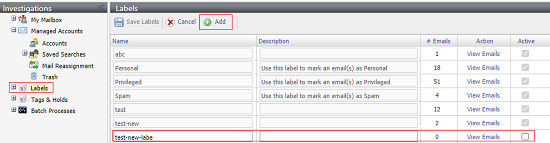
On the Investigation tab, in the left navigation pane, select Labels.
-
Click Add.
-
Specify the following details:
Name Specify a unique name for the label. Description Optionally enter a description for the label. \# Emails Displays number of emails to which this tag is applied. If this tag is not applied, the number of emails shown as zero. Action Click View Emails to view emails with the corresponding label. Active Select the Active check box for the label if you want to display this label while reviewers assign labels to emails. Clear the check box for any labels that you want to hide. -
Click Save Label.
Related information