
Selecting users, groups, or OUs to synchronize
Related information
Selecting users, groups, or OUs to synchronize
You must use the Task Manager Wizard to select the users, groups, or Organizational Units (OUs) on which to perform a Google Sync task.
Note: The Archive User Browser cannot be used to select the targets for Google Sync tasks.
You can use any of the following selection methods:
Whichever selection method you choose, make sure that you always select the Google Sync task check box on the first page of the Task Manager Wizard. You must also provide a replacement domain name if necessary. For more information on when to use a replacement domain name, see the following sections.

Selecting all of the users and groups in a domain
Note: Do not select all of the users and groups in a domain unless you are sure that is what you require. If you cause CloudLink to create a lot of unwanted archive accounts, you will either have to disable the unwanted archive accounts or incur the costs of the unwanted archiving.
To select all of the users and groups in a domain
-
At the bottom of CloudLink's left pane, click Task Manager to display the Welcome to Task Manager Wizard page.
-
Click Start Task Manager Wizard.
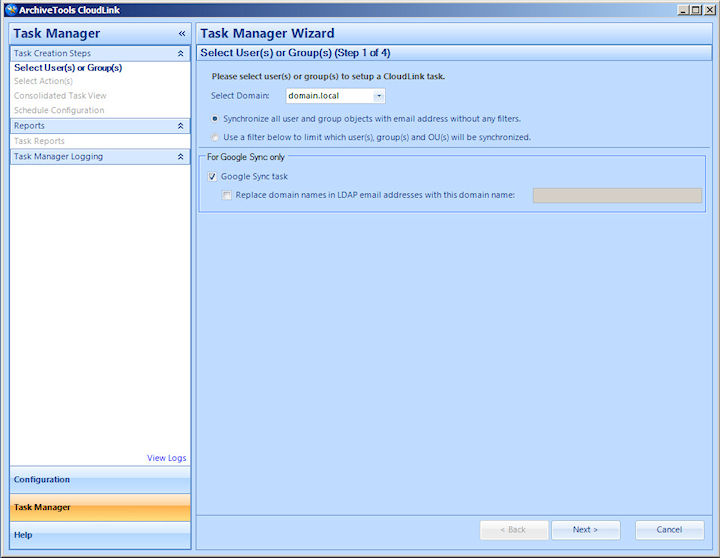
The wizard's Select User(s) or Group(s) step appears.
-
In the Select Domain drop-down list, select the required domain.
-
Select Synchronize all user and group objects with email address without any filters.
-
Under For Google Sync only, select the Google Sync task check box.
-
If required, select Replace domain names in LDAP email addresses with this domain name , and enter the replacement domain name. You must provide a fully qualified domain name.
If you select this option, the task changes the email addresses in Arctera Insight Archiving to use the new domain name.
Note: This setting should match the equivalent setting in the Google Cloud Directory Sync tool (GCDS).
-
Click Next to save your choices and move to the Select Action(s) page.
See Selecting the actions for a Google Sync task to perform.
Note: If a dialog regarding the Allow Remote Account Management option appears, you must choose whether to enable remote account management before you continue. SeeAbout granting remote account management for CloudLink.
Selecting entire OUs, or users and groups from within OUs
This procedure describes how to select entire OUs, or specific users and groups from an OU.
To select entire OUs, or users and groups from within OUs
-
At the bottom of CloudLink's left pane, click Task Manager to display the Welcome to Task Manager Wizard page.
-
Click Start Task Manager Wizard.
The wizard's Select User(s) or Group(s) step appears.
-
In the Select Domain drop-down list, select the required domain.
-
Select Use a filter below to limit which user(s), group(s) and OU(s) will be synchronized.
-
Under For Google Sync only, select the Google Sync task check box.
-
If required, select Replace domain names in LDAP email addresses with this domain name , and enter the replacement domain name. You must provide a fully qualified domain name.
If you select this option, the task changes the email addresses in Arctera Insight Archiving to use the new domain name.
Note: This setting should match the equivalent setting in the Google Cloud Directory Sync tool (GCDS).
-
In the tree of Active Directory objects, click the name of an OU, so that the name becomes highlighted. The User Search pane displays the mail-enabled users and groups for the highlighted OU.
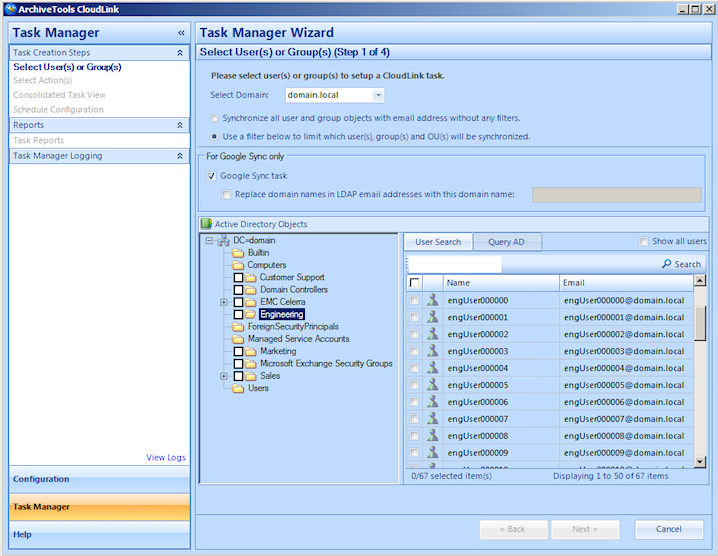
The information bar at the bottom of the User Search pane shows the following, for the currently highlighted OU:
-
How many items are currently selected out of the total.
-
How many items are currently displayed out of the total.
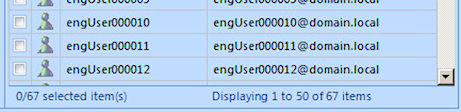 Note: By default theUser Searchpane displays only the first 50 items in the highlighted OU. To display all of the items, select theShow all userscheck box. Note however that the full list may take some time to appear if the OU has a large number of users and groups.
-
Select the required items as follows:
-
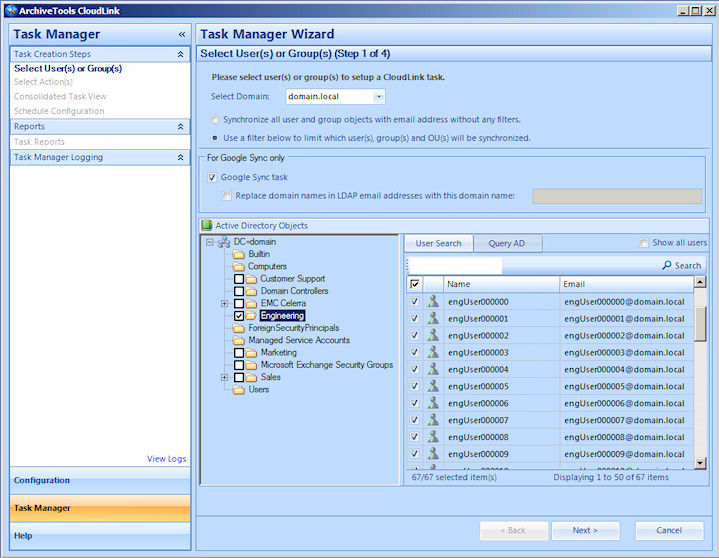
To select the entire OU, select the check box for the OU in the tree of Active Directory objects.
-
To select mail-enabled users or groups individually from an OU, click the OUs name in the object tree to highlight the name, but do not select the OU's check box. Then in the User Search pane, select the check box for each user or group you want to include.
To search for the name of a user or group in the highlighted OU, enter a search string in the User Search search box, and click Search.

The User Search pane displays the results of the search, from which you can select any items as required.
Note: Searches are performed on the user name or group name only. The search string must match the user name or group name from the beginning. For example, a search forDavmatchesDavid SmithandDavinia Jones, but notJohn Davidson. Wildcard search characters are not supported.
-
You can select multiple OUs or items from within multiple OUs. When you have made all your selections, click Next to save the selections and continue to the Select Action(s) wizard page.
See Selecting the actions for a Google Sync task to perform.
Note: If a dialog regarding the Allow Remote Account Management option appears, you must choose whether to enable remote account management before you continue. SeeAbout granting remote account management for CloudLink.
Selecting users with an LDAP query
You can specify an LDAP query in Task Manager to select the users for a task. The LDAP query can include wildcard characters.
Note: Complex query strings may produce unexpected results. We recommend that you restrict LDAP queries to simple strings such asname=chris*, other than for Group-based Sync. Group-based Sync queries are described separately. SeeSelecting members of a distribution group using Group-based Sync.
To select users with an LDAP query
-
On the Welcome to Task Manager Wizard page, click Start Task Manager Wizard.
The wizard's Select User(s) or Group(s) step appears.
-
In the Select Domain drop-down list, select the required domain.
-
Select Use a filter below to limit which user(s), group(s) and OU(s) will be synchronized.
-
Under For Google Sync only, select the Google Sync task check box.
-
If required, select Replace domain names in LDAP email addresses with this domain name , and enter the replacement domain name. You must provide a fully qualified domain name.
If you select this option, the task changes the email addresses in Arctera Insight Archiving to use the new domain name.
Note: This setting should match the equivalent setting in the Google Cloud Directory Sync tool (GCDS).
-
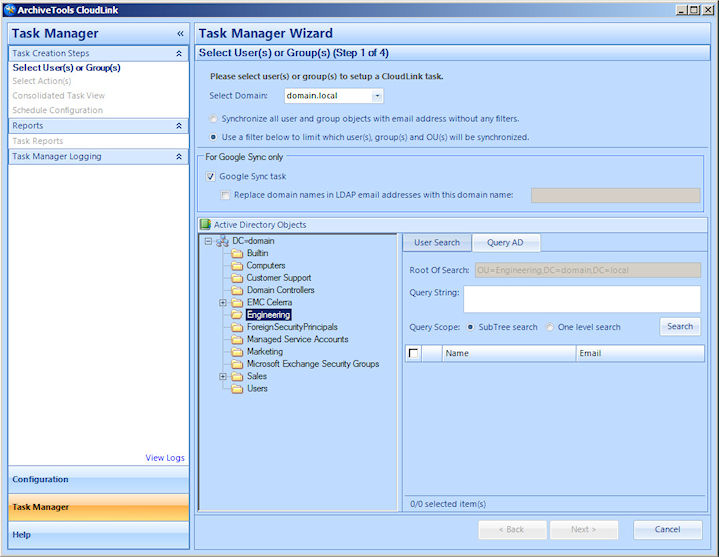
In the Active Directory Objects area, select the Query AD tab.
-
In the tree of Active Directory objects, click a node in the tree to highlight the starting point for the LDAP query search. The Root of Search box shows the starting point that is selected.
-
In the Query String box, enter an LDAP query string.
-
Choose a Query Scope option:
-
Select SubTree search to search within the selected OU and all of its child OUs.
-
Or select One level search to search within the selected level only. For example, if you chose an OU as the root of the search, CloudLink searches that OU only, and not any child OUs.
-
-
Click Search.
-
From the results that the search returns, select one or more of the users.
-
Click Next to save and continue to the Select Action(s) page.
See Selecting the actions for a Google Sync task to perform.
Note: If a dialog regarding the Allow Remote Account Management option appears, you must choose whether to enable remote account management before you continue. SeeAbout granting remote account management for CloudLink.
Selecting members of a distribution group using Group-based Sync
Group-based Sync selects the members of a distribution group on which to perform a task. Group-based Sync uses an LDAP custom query that includes the memberOf attribute to select the members of the distribution group. You can use a Group-based Sync to find all the members of the specified distribution group, including any membership that results from group nesting.
To select the members of a distribution group using Group-based Sync
-
On the Welcome to Task Manager Wizard page, click Start Task Manager Wizard.
The wizard's Select User(s) or Group(s) step appears.
-
In the Select Domain drop-down list, select the required domain.
-
Select Use a filter below to limit which user(s), group(s) and OU(s) will be synchronized.
-
Under For Google Sync only, select the Google Sync task check box.
-
If required, select Replace domain names in LDAP email addresses with this domain name , and enter the replacement domain name. You must provide a fully qualified domain name.
If you select this option, the task changes the email addresses in Arctera Insight Archiving to use the new domain name.
Note: This setting should match the equivalent setting in the Google Cloud Directory Sync tool (GCDS).
-
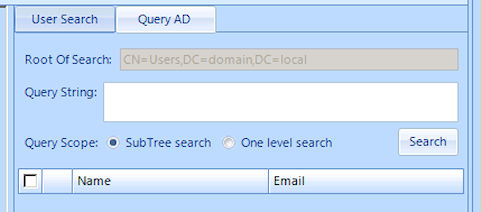
In the Active Directory Objects area, select the Query AD tab.
-
In the tree of Active Directory objects, highlight the starting point for the LDAP query search. The Root of Search box shows the starting point that you selected.
-
In the Query String box, enter an LDAP query with the following format:
(&(memberOf:1.2.840.113556.1.4.1941:=group_DN))
OR
(&(objectClass=group)(|(&(groupType:1.2.840.113556.1.4.803:=2147483648)(mail=*))(!(groupType:1.2.840.113556.1.4.803:=2147483648))))
where
group_DN specifies the distinguished name of the distribution group. For example:
(&(memberOf:1.2.840.113556.1.4.1941:=CN=Users,OU=team,DC=domain,DC=local))
Note the following about the query syntax:
-
A Group-based Sync query must include the memberOf attribute.
-
The 1.2.840.113556.1.4.1941 matching rule OID causes the query to include the membership that results from group nesting.
-
Choose a Query Scope option:
-
Select SubTree search to search within the selected OU and all of its child OUs.
-
Or select One level search to search within the selected level only. For example, if you chose an OU as the root of the search, CloudLink searches that OU only, and not any child OUs.
-
Click Search to check that the search returns the results that you expect.
-
Click Next to save the query and continue to the Select Action(s) page.
See Selecting the actions for a Google Sync task to perform.
Note: If a dialog regarding the Allow Remote Account Management option appears, you must choose whether to enable remote account management before you continue. SeeAbout granting remote account management for CloudLink.
Selecting members of a dynamic distribution group using Group-based Sync
To select the members of a dynamic distribution group using Group-based Sync
-
On the Welcome to Task Manager Wizardpage, clickStart Task Manager Wizard.
The wizard's Select User(s) or Group(s) step appears.
-
In the Select Domain drop-down list, select the required domain.
-
Select Use a filter below to limit which user(s), group(s) and OU(s) will be synchronized.
-
In the Active Directory Objectsarea, select theQuery AD tab.
-
In the tree of Active Directory objects, highlight the starting point for the LDAP query search. The Root of Search box shows the starting point that you selected.
-
In the Query String box, enter value of msExchDynamicDLFilter attribute of dynamic distribution group. You can get this value from "Active Directory User and Computer" tool on domain controller. Below are steps to get this value
-
A Query Scopeoption is not applicable for dynamic distribution list. However, you have to selectSubTree search.
-
Click Search to check that the search returns the results that you expect.
-
Click Next to save the query and continue to the Select Action(s) page. See Selecting the actions for a Google Sync task to perform.Note: CloudLink can provision only those users which are directly a part of the selected dynamic distribution group.
Getting the msExchDynamicDLFilter attribute value of dynamic distribution group
You need to provide this value while configuring the members of a dynamic distribution group using Group-based Sync.
To get the msExchDynamicDLFilter attribute value of dynamic distribution group
-
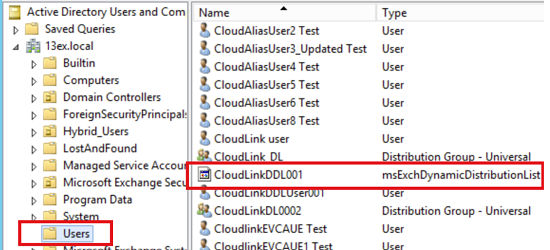
Log in to a domain controller. From the Startmenu, selectServer Manager. From theToolsmenu of Server Manager, clickActive Directory Users and Computers.
-
In the left navigation pane, select Users. A list of dynamic distribution groups appears as shown in the sample image below.
-
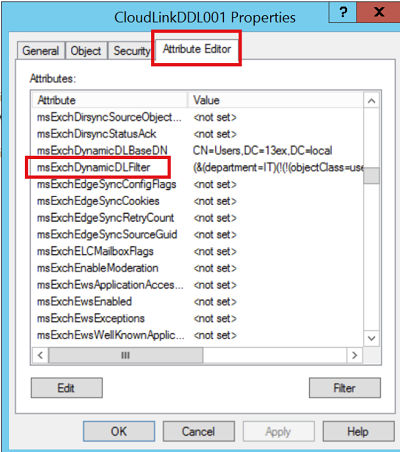
Double-click on the dynamic distribution group for which you want run sync. The property window appears.
-
From property window, select Attribute Editor tab. Within the attributes list, search for msExchDynamicDLFilter attribute.
-
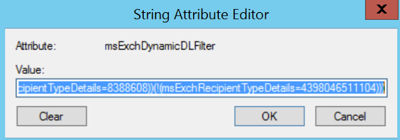
Double click on the msExchDynamicDLFilter attribute to view corresponding attribute value.
-
Copy this attribute value and paste in the Query String field in the CloudLink tool.
More Information
Selecting the actions for a Google Sync task to perform