
Viewing the task reports
CloudLink generates a report every time a task runs. You can view the task reports to monitor the progress of tasks, including whether each action completed successfully for each user that was a target for the task.
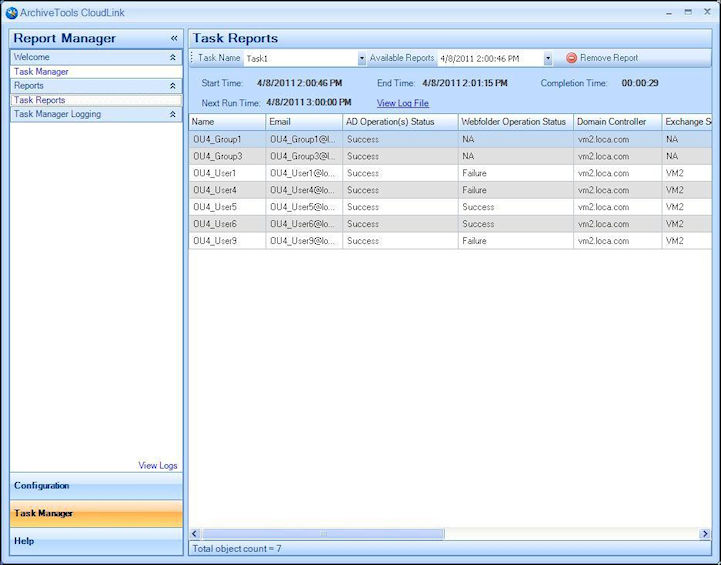
The task reports are accessed from the Task Reports page of Task Manager.
To view the task reports
-
Ensure that Task Manager is selected near the bottom of the left pane.
-
Select Task Reports from the left pane.
-
In the Task Reports window, in the Task Name box, select a task from the drop-down list.
-
If the task is recurrent, a report is available for each instance of the task. In the Available Reports box, select a report from the drop-down list.
The Task Reports page then shows information for the selected task, or the selected instance of a recurring task. The table lists the results of each aspect of the task, for each user that was a target for the task.
Note: If a task fails to complete successfully, the Task Report statesTask Failedbelow theCompletion Time. For example, an Exchange task fails if the CloudLink service account does not have impersonation rights to each target Exchange mailbox.
From the Task Reports page, you can also perform some additional actions:
-
To view the current ADSyncLog or DominoSyncLog log file, click the View Log File link.
-
To delete the selected report from CloudLink, click Remove Report in the Task Reports menu bar.
Related information