
Searching Collaboration messages during investigation
You can search and view the Collaboration messages if the Microsoft Teams service is enabled and the archive collector is configured for you.
To search Collaboration messages during investigation
-
Select the Investigations tab, and then select the node where you want to perform the new search:
-
To search your own mailbox select My Mailbox > Mailbox, or selectMy Mailbox > Saved Searches > New Search.
-
To search one or more of your managed accounts select Managed Accounts > Saved Searches > New Search.
-
Or to search a single managed account, select Managed Accounts > Accounts and click the required account.
-
-
To perform an Advanced Search, do the following:
-
Select the Advanced Search tab.
-
Select the custodian archives you want to search.
-
To search archives of all of the custodians that are associated with the case, select All.
-
To search archives of the particular custodians, select Custom. Click Manage to search for, add, and remove the custodians. Click Update to complete the custodian selection.
-
-
Specify the search criteria by using the following options.
-
Select All to match all conditions you have provided.
-
Select Any to match any of the conditions you have provided.
-
Click + to add new search clauses, and complete a new row for each clause.
-
Click - to remove search clauses that are not required.
-
Searches are not case-sensitive. The search supports phrase search, Boolean operators, proximity search, and wildcard search.
-
-
See Search syntax for Advanced Search.
-
Search for and select the message attributes you want to search. Refer to the table below:
Entire Message Contains / Doesn't Contain Subject Contains / Doesn't Contain Body Contains / Doesn't Contain From Contains / Doesn't Contain Note: Produces search results from theFromfield. To Contains / Doesn't Contain Note: Produces search results from theTo,BCC, andCCfields. Has Attachment Yes / No Attachment Name Contains / Doesn't Contain Attachment Type Contains / Doesn't Contain See Searchable attachment types . Classified As Contains / Doesn't Contain Note: This option is available if the Veritas Information Classifier service is enabled for your company. Select a classification tag from the drop-down list. The list shows all the classification tags that have been applied to your company's messages in Enterprise Vault.cloud. To see a tooltip with a classification tag's description, select the classification tag from the drop-down list and then point to the classification tag. Date Sent (AND) Is Equal To / Before / Before (Incl.) / After / After (Incl.) From / To Contains / Doesn't Contain Note: This option produces search results from theFromandTofields. Inbound Message (AND) Yes / No Outbound Message (AND) Yes / No Is Hidden Yes / No IP Header Contains / Doesn't Contain
-
To perform a Query Search, do the following:
-
Select the Query Search tab.
-
Select the custodian archives you want to search.
-
To search archives of all of the custodians that are associated with the case, select All.
-
To search archives of the particular custodians, select Custom. Click Manage to search for, add, and remove the custodians. Click Update to complete the custodian selection.
-
-
Specify the search query by providing keywords.
-
Click Search.
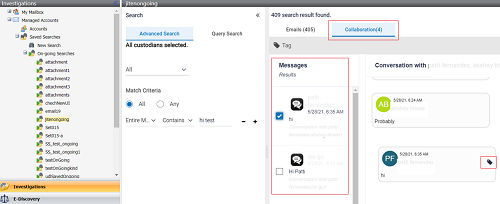
The search result appears as shown in the following sample image.
-
Click Save Search.
Related information