
Performing a "Run Now" Folder Sync synchronization
From the ArchiveTools Management Console you can perform a Folder Sync synchronization immediately for one or more mailboxes.
Folder Sync may take some time to complete the processing of all of the mailboxes. The processing time depends on several factors including the number of selected mailboxes and the size of the mailboxes.
Note: You cannot prioritize mailboxes for synchronization. Folder Sync synchronizes the selected mailboxes in alphabetical order.
To perform a Run Now Folder Sync synchronization
-
In the left pane of the ArchiveTools Management Console, expand the Archive Accelerator node.
-
Expand the Archive Tools node and select All Mailboxes.
The main pane then displays the All Mailboxes table, which shows the Folder Sync status for each mailbox in the Folder Sync mailbox database.
-
In the list of mailboxes, select the mailboxes on which you want to run the synchronization.
To select multiple mailboxes, hold down the Ctrl key while you select the mailboxes. To select multiple consecutive mailboxes, hold down the Shift key while you select the mailboxes.
Note: To select all of the mailboxes that are currently provisioned in Enterprise Vault.cloud, sort or group the table on theArchivedcolumn, then select all of the mailboxes that have the valueTruein that column.
-
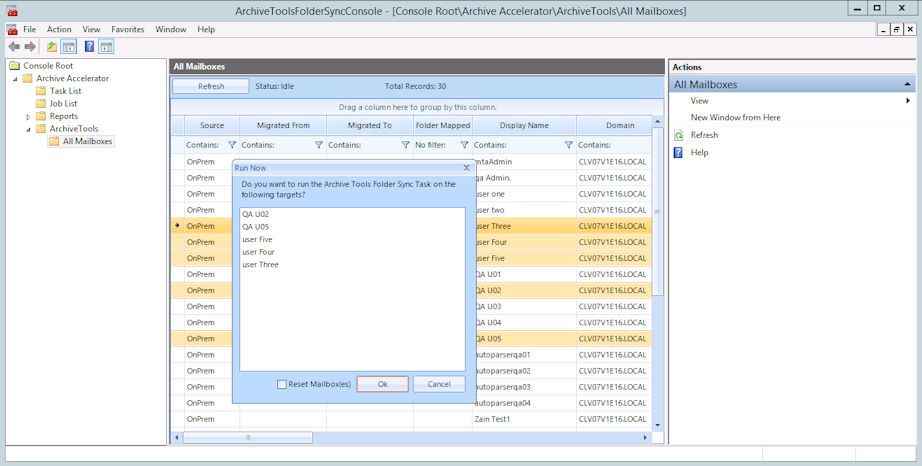
Right-click any one of the selected mailboxes, and choose Run Now to display the Run Now dialog.
-
On the Run Now dialog, click OK to start the Folder Sync synchronization.Note: Never select theReset Mailbox(es)check box, unless Veritas Services & Support direct you to do so. SeeAbout the Reset Mailbox(es) option.
The Status column displays the Folder Sync synchronization status for each mailbox. To update the Status column, click Refresh.
More Information