
User interface components
This section introduces the main components of the user interface for the Insight Personal Archive mobile web access application, explaining their function and how you can interact with each element.
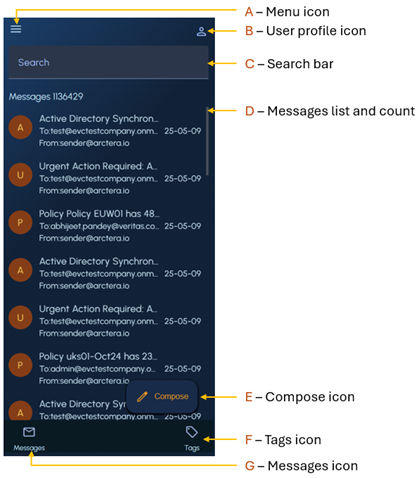
| Screenshot reference | Component | Description |
|---|---|---|
| A | Menu icon (Hamburger icon) | Available in the top-left corner of the screen, and lets you open the side menu. |
| The Log out option is the only available action and is used to exit the application. | ||
| B | User profile icon | Available in the top-right corner of the screen, and lets you access the following\: |
| - Advanced Search Search and Subject fields: Enter keywords or subject lines to quickly filter messages containing matching text. Mail Direction drop-down: Select the direction of mail flow, such as All Mails, Incoming, or Outgoing, to narrow your search scope. From , To , and Date Range fields: Define specific sender or recipient email addresses and to filter messages within a selected date range. Has Attachment checkbox and Attachment Type field: Select the checkbox to include only messages that have file attachments, and specify the attachment type if the checkbox is selected. | ||
| - Settings Information section : Shows the read-only information about your logged-in account, associated company, and the application version. Language drop-down: Select the application's display language to your preferred option. Time Zone and Theme drop-downs: Select your preferred time zone and switch between the light, dark, or your device default visual themes. Change Password button: Tap to change your password. Help button: Tap to access application help document. | ||
| - Logout : Tap to exit the application. | ||
| C | Search bar | Lets you enter keywords to search messages. |
| D | Message list and count | Lets you view a list of messages and the total number of messages available in your account. |
| E | Compose icon | Lets you create and send a new message. |
| This icon appears when you are viewing or working with messages. It features a pencil icon and is persistently accessible regardless of scrolling action. | ||
| F | Messages icon | Lets you view the existing messages, compose new messages, and search messages. |
| G | Tags icon | Lets you view the existing tags, add new tags, and search tags. |
Related information