
Configuring the MYOK feature
Configuring the MYOK feature is a multi-stage process that involves actions from both, the Arctera Insight Management Console administrator and the customer administrator.
-
Firstly, the Arctera Insight Management Console administrator enables the customer administrator to configure MYOK feature independently.
-
Later, the customer administrator logs in to the Arctera Insight Management Console and completes the configuration process solely.
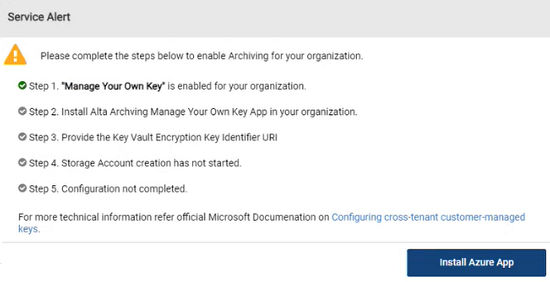
When the customer administrator logs in to the Arctera Insight Management Console, the Service Alert window appears and instructs the customer administrator to complete the MYOK configuration on the Microsoft Azure portal. To understand the configuration process, the customer administrator can access the link provided on the same window. Until the MYOK configuration is completed, the Arctera Insight Management Console restricts the customer administrator from using any other features.
Note: For detail information, refer toArctera Insight Archiving Key Management.
The entire MYOK feature configuration process involves the following stages:
-
Stage 1: Enabling the MYOK feature for a customer
-
Stage 2: Installing the Azure App and assigning role to it
-
Stage 3: Creating a storage account with customer's managed key
Stage 1: Enabling the MYOK feature for a customer
During the initial provisioning of a new customer, the Arctera Insight Management Console administrator can access the MYOK feature on the Company Details page. After the customer has been created, this option becomes unavailable.
Note: The non-MYOK enabled customers can contact Veritas support to avail this option, however, the process incurs additional time and cost.
To enable the MYOK feature for a customer
-
In the left navigation pane, select Customer Service>Customers.
-
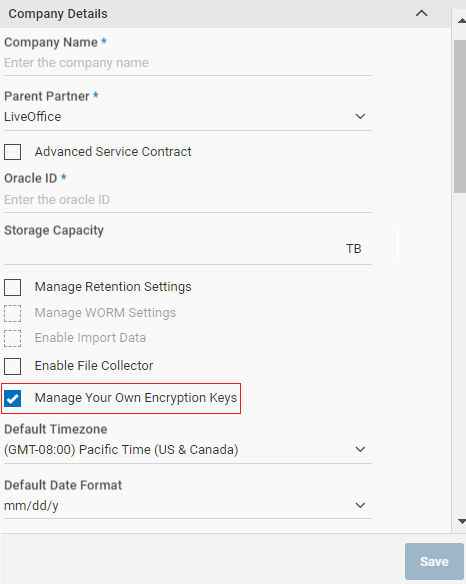
On the Company Detailstab, while specifying the required customer details, select theManage Your Own Encryption Keys check box as shown in the sample image below.
-
Click Save.
The application enables the customer to use the MYOK feature.
Stage 2: Installing the Azure App and assigning role to it
Prerequisites
-
The customer administrator must log in using Azure Org User credentials to install the Azure app and create the encryption keys. The Microsoft user on the tenant cannot perform these activities.
-
The customer administrator requires both, the Application Administratorrole to install the Azure app and theSubscription Owner role to create encryption keys.
-
The customer administrator needs to create a Key Vault in the Azure subscription, prior to the Azure app installation.
To install the Azure App and assigning role to it
-
Ensure that the Service Alert window appears after you log in to your Arctera Insight Management Console.
-
Click Install Azure App to initiate installation on your Microsoft Azure subscription. The application redirects you to log in to your Microsoft Azure subscription.
-
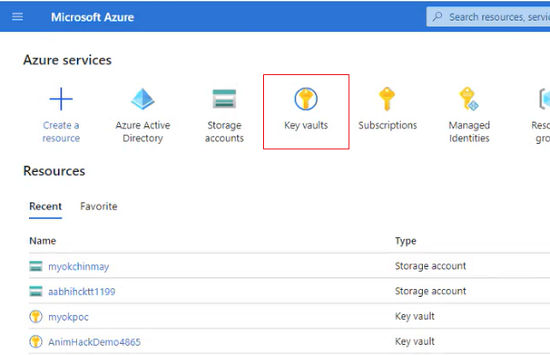
After login, select Home>Key Vault to access your key vault.
-
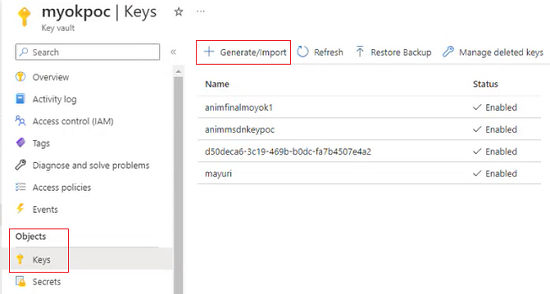
In the left navigation pane of the Key Vaultpage, selectObjects>Keys, and clickGenerate/Import.
-
On the Create a keypage, select the required key configuration, and clickCreate.
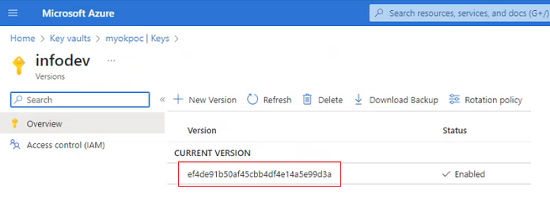
The application generates the encryption key. Click the key value to view its details.
-
On the key details page, select Access Control>Check Accesstab, and clickAdd Role Assignment.
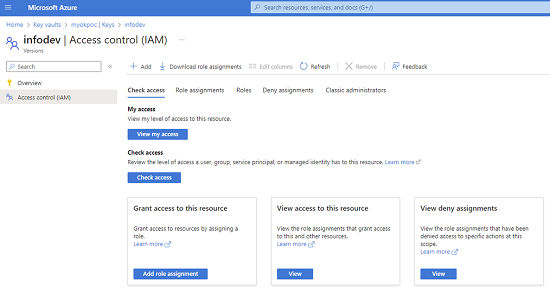
-
On the Roletab, assign theKey Vault Crypto Officer role to the installed Azure app.
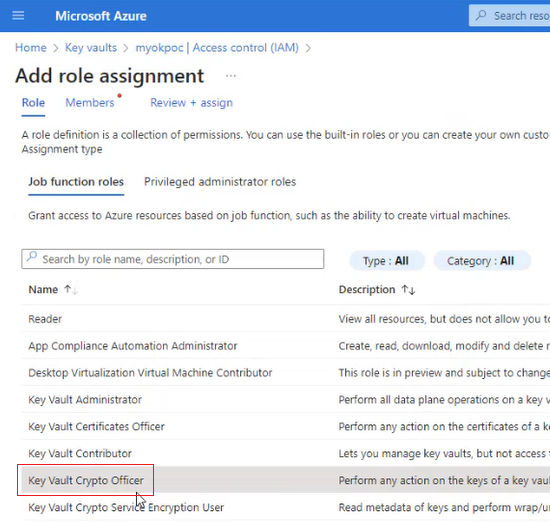
-
On the Memberstab, clickSelect Membersand select the Azure app as a member. Then, clickReview + assign.
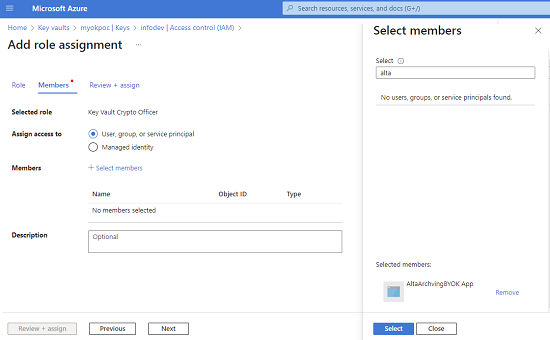
-
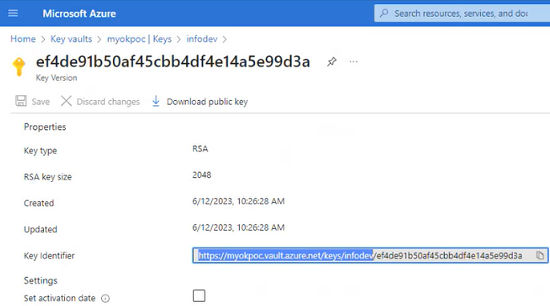
From the key vault, copy the key from the Key Identifier field.
Stage 3: Creating a storage account with customer's managed key
To create a storage account with customer's managed key
-
Paste the key Identifier URI into the Key Vault Encryption Key Identifier URIfield on theService Alertwindow, and clickSave Storage Uri.
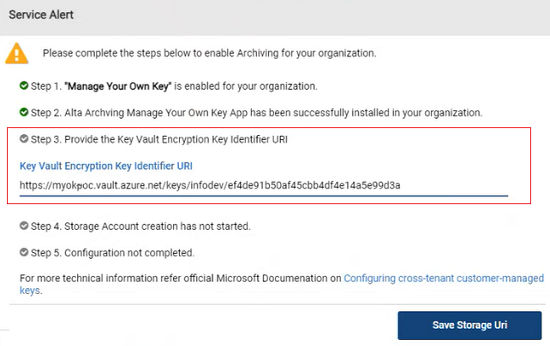
The storage account creation process with your managed encryption key initiates in the background.
-
After successfully creating the storage account, verify that the Service Alertwindow displays completion of all steps, and clickAcknowledge to confirm successful configuration of the MYOK feature.
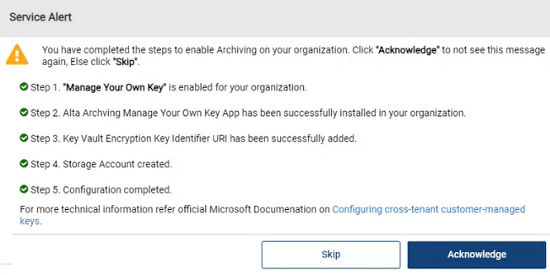
If you skip to acknowledge, the window reappears again.
-
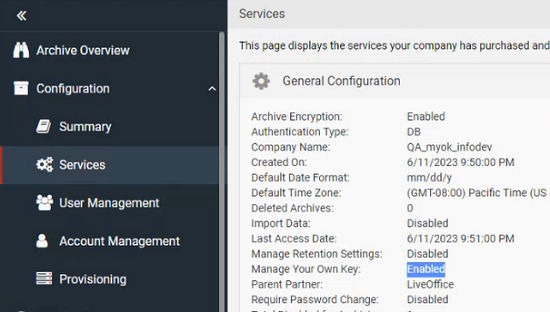
To confirm if the MYOK feature is enabled, in the left navigation pane of the Arctera Insight Management Console, do any of the following:
-
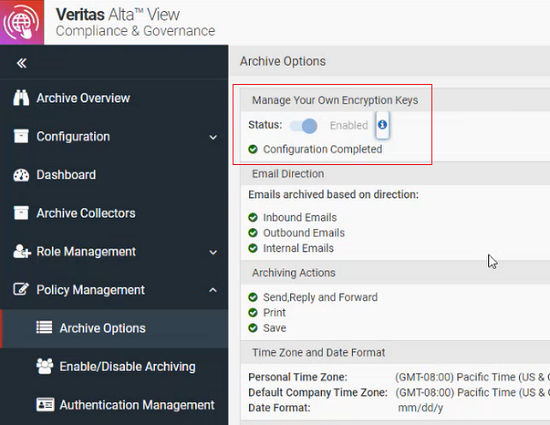
Select Policy Management>Archive Options, and ensure that under theManage Your Own Keys section, the status is set to Enabled.
-
Select Configuration>Services, and ensure that under theGeneral Configurationsection, theManage Your Own Keys status is set to Enabled.
-
Related information