
Viewing reseller details
To view reseller details
-
In the left navigation pane, select Customer Service>Reseller Portal.
The Reseller Portal View page provides you with the following details of resellers:
| Column Heading | Description |
|---|---|
| Customer Name | Lets you view customer name. |
| Last Login | Lets you view the date of the last login to the services by the customers. This information provides the date when the customers most recently accessed or logged in to the provided services. |
| Admin Contact | Lets you view the contact email address of the administrator from customers side. This email address serves as the point of contact for administrative purposes and communication related to the customer accounts or services. |
| Primary Usage | Lets you view the percentage of primary services usage by the customer. |
| Secondary Usage | Lets you view the percentage of secondary services usage by the customer. |
| Storage Allocation(GB) | Lets you view the storage space (in GB) allocated to customer. |
| Storage Usage | Lets you view the ratio of allocated to utilized storage by customer. |
| Storage Overage(GB) | Lets you view additional storage space (in GB) utilized beyond allocated space by customers for data storage. |
| Transcription Allocation(GB) | Lets you view the space (in GB) allocated to customers for transcription-specific services. |
| Transcription Usage | Lets you view the space (in GB) actually utilized by customers for transcription-specific services. |
| Transcription Overage(GB) | Lets you view additional storage space (in GB) utilized beyond allocated space by customers for transcription services. |
| Renewal Date | Lets you view the Zuora subscription expiration date if the Zuora subscription service is enabled for customers. If the service is disabled, this field remains blank. |
| PA Quota | Lets you know number of Alta Personal Archive licenses allocated to a customer. |
| \# of PA Accounts | Lets you know number of Alta Personal Archive accounts used by a customer. |
| PA % Used | Lets you know percentage of Alta Personal Archive licenses utilized by a customer. |
| Personal Archive Last Accessed | Lets you know the last access date of Personal Archive within the past six months. |
| eDiscovery Quota | Lets you know number of Alta eDiscovery licenses allocated to a customer. |
| \# of eDiscovery Accounts | Lets you know number of Alta eDiscovery accounts used by a customer. |
| eDiscovery % Used | Lets you know percentage of Alta eDiscovery licenses utilized by a customer. |
| eDiscovery Last Accessed | Lets you know the last access date of Insight eDiscovery within the past six months |
| EC Quota | Lets you know number of Email Continuity licenses allocated to a customer. |
| \# of EC Accounts | Lets you know number of Email Continuity accounts used by a customer. |
| EC % Used | Lets you know percentage of Email Continuity licenses utilized by a customer. |
| Surveillance Quota | Lets you know number of Alta Surveillance licenses allocated to a customer. |
| \# of Surveillance Accounts | Lets you know number of Alta Surveillance accounts used by a customer. |
| Surveillance % Used | Lets you know percentage of Alta Surveillance licenses utilized by a customer. |
| Surveillance Last Accessed | Lets you know the last access date of Alta Surveillance within the past six months |
| Last Journal | Lets you know when was the journal feed last active. |
| Usage Over Time | Lets you view user account wise usage overage of services. |
| To access this report, locate the Usage Over Time column in the corresponding row and click Show Report link. Specify the duration and interval, then click Apply . This report is identical to the Service Usage Report > User Statistics Report . | |
| User List | Lets you export the latest user list per customer. |
| To access a list of users and their details, locate the User List column in the corresponding row and click Export . | |
| Usage Notification Enabled | When your user account is enabled for usage notification, this field allows you to see a list of redacted email addresses for sending overage notification emails. Notifications are not sent to users with the user notification option disabled. |
| Note: Only administrators have permission to enable usage notification for other user accounts. | |
| To access a list of email addresses for sending the overage notification emails, locate the Usage Notification Enabled column in the corresponding row and click Show Emails link. | |
| Capacity Trend Report | Presents data for each user account, showing their allocated and utilized storage capacity for a specified duration. |
| This report helps in gauging proximity to licensed and utilized storage limits to proactively decide on acquiring extra storage or receiving advance notifications to prevent overage charges. | |
| To access a report for a specific user account, locate the Capacity Trend Report column in the corresponding row and click Show Report link. Specify the duration and interval, then click Apply . | |
| Transcription Trend Report | Presents data for each user account, showing their allocated and utilized transcription service for a specified duration. |
| This report helps in gauging proximity to licensed and utilized transcription service limits to proactively decide on acquiring extra storage or receiving advance notifications to prevent overage charges. | |
| To access a report for a specific user account, locate the Transcription Trend Report column in the corresponding row and click Show Report link. Specify the duration and interval, then click Apply . |
-
By default, the application displays a fewer columns. To view additional columns and access more details on the page, do the following:
-
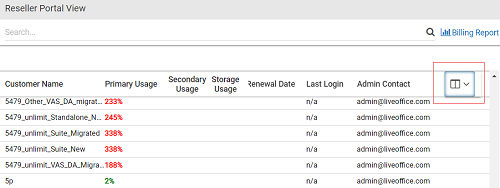
Click the Column icon in the top-right corner of the page as shown in the sample image below.
-
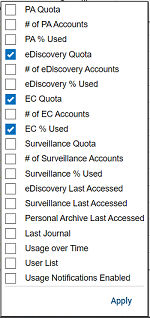
Select the column you want to see on page and click Apply as shown in the sample image below.
-
-
To search for and select the reseller to view its details, perform any of the following steps:
-
Use navigation arrows at the bottom of the page for easy access to the first, previous, next, and last pages.
-
To find the required reseller, in the Searchfield, enter the keywords that characterize the reseller name that you want to search for, and then press ENTER on a keyboard or click theSearch icon.
-
Related information