
Exporting emails
During the review process, reviewers can export emails in EML, NSF, PST, EML with EDRM, msg with EDRM, and PST with EDRM format.
To export emails
-
Browse the archives for the accounts that are assigned to you or conduct a search.
-
Select the emails you want to export.
-
Click the export icon, and select an export option.
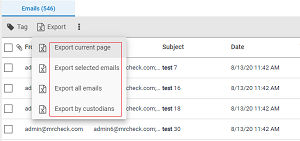
-
Enter the required information in the Export Options dialog. Review the following table for more information.
Message Format Select one of the following file formats from the drop-down menu\: - EML - NSF - PST - EML with EDRM - Msg with EDRM - PST with EDRM Warning: For Clearwell and FTI-Ringtail, do not use export options when exporting emails from the Investigations tab. These options are used for the discovery process and should only be available to export emails from theE-Discoverytab. Include Journaling Envelope Select this option to include journaling envelopes, which contain information about email recipients such as distribution lists. Exclude Exported Emails Select this option to exclude previously exported emails from the current export. This option is case-specific. The same email in another case may or may not be exported depending if it was already exported for that case. Export Name Enter a name for the export file. Export Password Enter an access password for the export file. The password is required to open the export file after it is downloaded to your computer. Confirm Password Enter your export password again to confirm. -
Click Export Items.
-
To review export status, expand the Batch Processes node and select Exports.
More Information
Related information