
Accessing your own archived emails
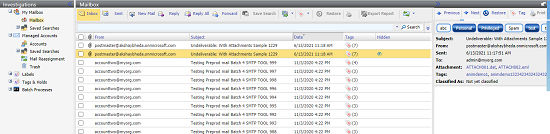
Advanced eDiscovery users can view and access their own archived emails from the Investigations tab > My Mailbox node. You can view all of your archived emails, including the emails that were deleted from your email inbox.
My Mailbox has similar functionality to your Personal.cloud archive. You can view and search your own emails. You can also reply and forward your emails from here. You cannot restore emails to your own account from Advanced eDiscovery and can only restore mails to the accounts which you monitor.
Note: When you view your archived emails, certain Personal.cloud features such as search filters and active folders are not available from Advanced eDiscovery.
When you select an email from the list, a preview pane displays the message. You can move this preview pane to underneath or to the right side of the main pane. The preview pane displays the message content and any attachments that are included with the original email.
You can double-click an email in the list to open the email in a separate window.
Below the Subject, From, Sent, and To information in the email header, you can see listed any attachments and also any custom tags or classification tags that are applied to the email. The custom tags and classification tags are typically for use with eDiscovery tasks.
Related information