
Enabling or disabling policies
By default, all the policies are disabled. You must enable a policy if you want the Arctera Insight Classification to check for and tag the items that match the policy.
Note: Enabling a lot of policies can affect performance. In addition, policies with complex conditions take longer to process than those with simple conditions.
To enable or disable policies
-
In the left navigation pane, click Policies.
-
To enable or disable a single policy, search for and select that policy, and click Edit.
The Edit \<Policy Name \> dialog box appears.
In the Statusfield, selectEnabledorDisabled for corresponding action.
-
To enable or disable multiple policies simultaneously, either search for specific policies or select policies.
In the right pane, the application displays the number of policies selected. Click Edit.
-
In the Statusfield, selectEnabledorDisabled for corresponding action.
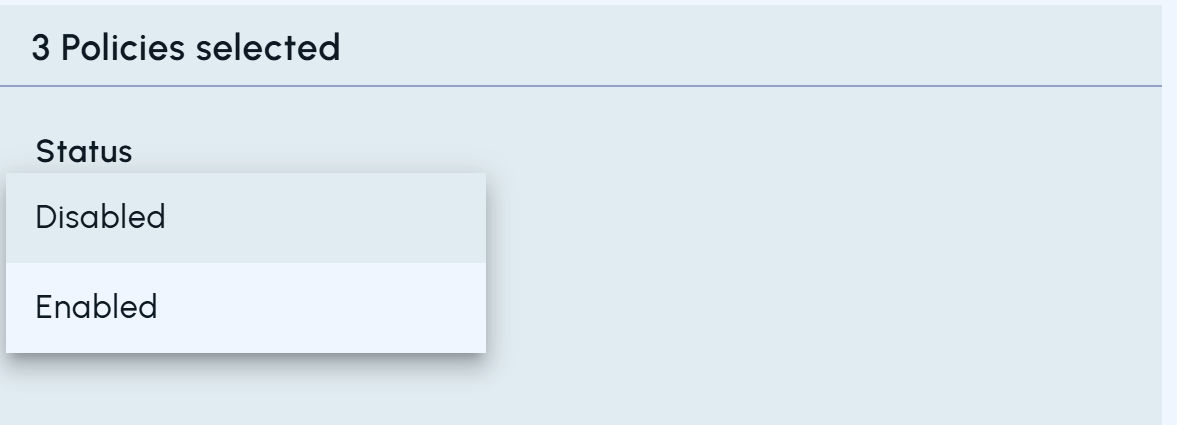
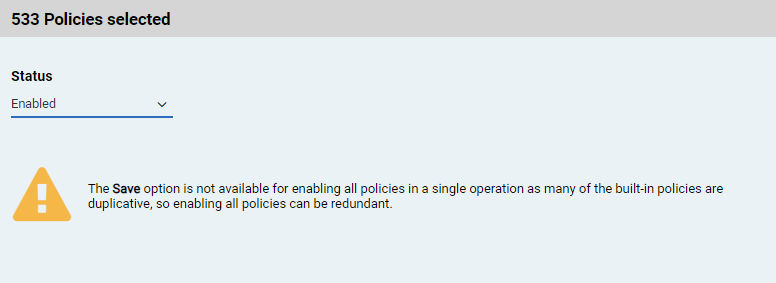
Enabling all policies in a single operation is prohibited as there are multiple factors that you need to consider before enabling a policy. If you select all policies and try to enable, following error message will appear on the screen, prohibiting the operation.
 |
|---|
-
Click Save.
Related information