
About the Task Manager Welcome page and the Archive User Browser
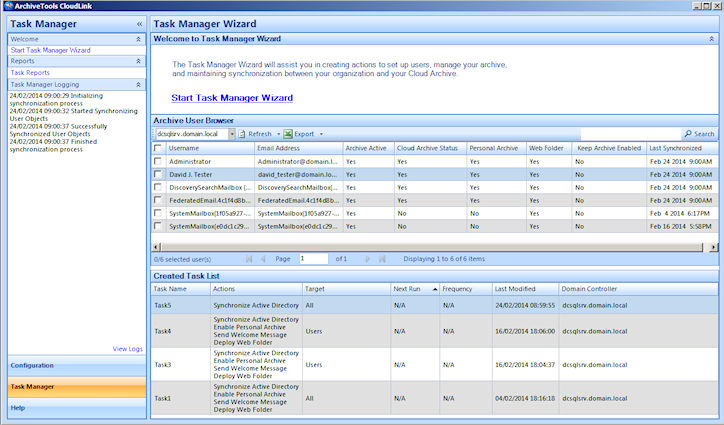
The Welcome to Task Manager Wizard page can show information about the following:
-
The Active Directory users that you have selected for CloudLink to synchronize to Arctera Insight Archiving.
-
All the users in the Active Directory domains that you have registered with CloudLink.
-
The CloudLink tasks that you have created.
-
The status of account synchronizations.
The Welcome to Task Manager Wizard page is also the place from which you launch the Task Manager wizard.
Archive User Browser
The Archive User Browser pane shows information about the users that are associated with the Active Directory domain that is selected in the Archive User Browser menu bar.
Note: The displayed information relates to when you last started CloudLink, or when you last refreshed the Archive User Browser.
The Archive User Browser can show information from either of two separate sources:
-
By default, the Archive User Browser shows information about the users and groups that you have selected for CloudLink to synchronize to Arctera Insight Archiving. When you start CloudLink, CloudLink reads its local database to obtain this information. To refresh this data, click the Refresh drop-down on the Archive User Browser menu bar, and select Refresh from Database.Note: When you create a task, CloudLink adds the users to its database as soon as you select them. The database can therefore include users for which synchronization has not yet occurred.
-
The Archive User Browser can also show information for all of the mail-enabled users and groups in the selected Active Directory domain. To view this information, click the Refresh drop-down on the Archive User Browser menu bar, and select Refresh from Active Directory.Note: A refresh with data from Active Directory may take some time, depending on the size of your Active Directory deployment.
Table: Information shown in the Archive User Browser shows the information that the Archive User Browser displays for each user.
Related information
Table: Information shown in the Archive User Browser
| Column | Description |
|---|---|
| Username | The login name of the user. |
| Email Address | The primary email address of the user. |
| Archive Active | Yes : Archiving is set to enabled. |
| No : Archiving is set to disabled. | |
| Cloud Archive Status | Yes : A synchronization event has occurred. |
| No : A synchronization event has not occurred. | |
| Personal Archive | Yes : Access to Insight Personal Archive is set to enabled. |
| No : Access to Insight Personal Archive is set to disabled. | |
| Web Folder | Yes : A Insight Personal Archive web folder is set to enabled. |
| No : A Insight Personal Archive web folder is set to disabled. | |
| Note: Web folders are not applicable to Google Sync tasks. | |
| Keep Archive Enabled | Yes : Archiving is set to enabled if the user is disabled in Active Directory. |
| No : Archiving is set to disabled if the user is disabled in Active Directory. | |
| Last Synchronized | The date and time of the last synchronization event. |
| Note: The last synchronization time can be different for different users. You get only the modified account details from the last synchronization time to optimize the cloud archive status synchronization. |
Note: Remember that the information dates from when you last started CloudLink, or when you last refreshed the Archive User Browser.
You can export the details of the users and groups that are listed in the Archive User Browser to a CSV (comma-separated values) file.
Created Task List
The Created Task List area lists all the tasks that currently exist. The list is empty until you create and run some tasks. You can copy and edit existing tasks from the Created Task List.
Task Manager Logging
The Task Manager Logging area posts information about Arctera Insight Archiving synchronizations as they happen, and provides links to the task reports and the CloudLink logs.
See Viewing the task reports.
More Information