
Printing the annotated and redacted document
After annotation or redaction, you can print the document with these redacted areas burned into the printed image thereby permanently hiding privileged or confidential information.
To print the annotated and redacted document
-
After you annotate or redact the content or document, select the View tab.
-
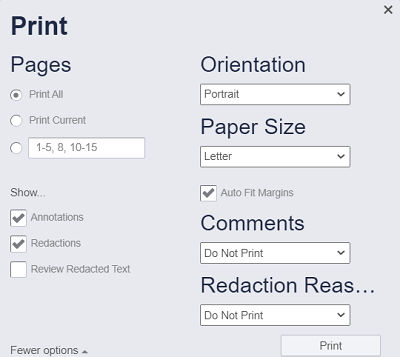
Click Print. The application displays the following dialog box.
-
Under Pages , select the options for the pages you want to print. Select the Annotation, Redaction, Review Redacted Text check-boxes if you want to print the document with all annotations, redactions, and review text.
-
Under Orientation , select the required page orientation.
-
Under Paper Size , select the paper size for the printed document.
-
Under Comments , do the following:
-
Select Do Not Print to exclude printing of comments.
-
Select After Each Page to print comments after each page.
-
Select At End of Document to print all comments at the end of the printed document.
-
-
Under Redaction Reasons , do the following:
-
Select Do Not Print to exclude printing of redaction reasons.
-
Select After Each Page to print redaction reasons after each page.
-
Select At End of Document to print all redaction reasons at the end of the printed document.
-
Related information