
Creating a new search
You can search the content of archive accounts from the Investigations tab, using Advanced Search and Query Search.
To create a new search
-
Select the Investigations tab, and then select the node where you want to perform the new search:
-
To search your own mailbox, select My Mailbox > Mailbox, or selectMy Mailbox > New Search.
-
To search one or more of your managed accounts, select Managed Accounts > New Search.
-
To search a single managed account, select Managed Accounts > Accounts, and click the required account. TheSearch pane appears.
-
-
To perform advanced search, specify the following inputs in the Advanced Search tab.
Custodians - Select All to search archives of all of the custodians that are associated with the case. - Select Custom to search archives of the particular custodians. The Manage button appears. Click Manage to open the Add/Remove Custodians . Expand Selected Custodians to view the custodians selected for this search. Expand Manage Custodians and select the custodians required for this search. Click Update to add these selected custodians as a search input. These custodians are listed under the Selected Custodians section. Custom Headers Note: TheCustom Headersoption does not appear if there is no entry for a custom header for a particular group or tenant in database. Custom header does not work independently. You need to use the filter criteria to search the required items. Expand Custom Headers and set the header operator values. - Click + to add new search clauses. - Click - to remove search clauses that are not required. - In the first column, select the required header you want to search for. Based on the data type you have selected, the operator changes. For example, if you have selected the receiver date in header, the operator values can be Between , Before inclusive and After inclusive . For a numeric or integer header value, the operator values can be Is equal to , Less than , and Greater than . If you have selected a string value in header, then the operator will be Contains . - In the second column, select the available operator. - In the third column, specify the text, phrase, or date that you want to search for. Filters Expand Filters and set the filter operator values. The operators are explained in a table below. - Select All to match all conditions you have provided. - Select Any to match any of the conditions you have provided. - Click + to add new search clauses, and complete a new row for each clause. - Click - to remove search clauses that are not required. - Searches are not case-sensitive. The search supports phrase search, Boolean operators, proximity search, and wildcard search. See Search syntax for Advanced Search .
The Filter operators are listed below:
| Message | Entire Message | Contains / Doesn't Contain |
|---|---|---|
| Subject + Body | Contains / Doesn't Contain | - |
| Subject | Contains / Doesn't Contain | - |
| Body | Contains / Doesn't Contain | - |
| Inbound Message (AND) | Yes / No | - |
| Note: The inbound message direction is decided differently based on the custodian selection: - Upon selectingall custodians, the message direction is determined at themessage level. Such message is treated asmessage-level inboundwhen it is sent to an internal domain from an external domain, independent of who the custodian is. - Upon selectingspecific custodians, the message direction is determined at thecustodian level. Such message is treated ascustodian-level inboundwhen it is sent by the selected custodian, regardless of whether the recipient is internal or external. | ||
| Outbound Message (AND) | Yes / No | - |
| Note: The outbound message direction is decided differently based on the custodian selection: - Upon selectingall custodians, the message direction is determined at themessage level. Such message is treated asmessage-level outboundwhen it is sent from an internal domain to an external domain, independent of who the custodian is. - Upon selectingspecific custodians, the message direction is determined at thecustodian level. Such message is treated ascustodian-level outboundwhen it is sent by the selected custodian, regardless of whether the recipient is internal or external. | ||
| Internal Message (AND) | Yes / No | - |
| Note: | ||
| - In Advanced Search , this option filters and retrieves only internal messages exchanged within the same organization. | ||
- In Query Search , use: Internal:(3) to include or NOT Internal:(3) to exclude |
||
| Is Hidden | Yes / No | - |
| IP Header | Contains / Doesn't Contain | - |
| Date Sent/Modified(AND) | Is Equal To | Select a date |
| Date Sent/Modified(AND) | Before | Select a date |
| Date Sent/Modified(AND) | After | Select a date |
| Date Sent/Modified(AND) | Within Range | Select a date range |
| Participants | All Senders and Recipients | Contains / Doesn't Contain |
| Participants | Senders Only | Contains / Doesn't Contain |
| Participants | Recipients Only | Contains / Doesn't Contain |
| Participants | To/Cc | Contains / Doesn't Contain |
| Participants | To | Contains / Doesn't Contain |
| Participants | Bcc | Contains / Doesn't Contain |
| Classification | Classified As | Contains / Doesn't Contain |
| Note: This option is available if the Arctera Insight Classification service is enabled for a user. | Select a classification tag from the drop-down list. The list shows all the classification tags that have been applied to your company's messages in Arctera Insight Archiving. | |
| To see a tooltip with a classification tag's description, select the classification tag from the drop-down list and then point to the classification tag. | ||
| Classification | Sentiment Score | Is Equal To / Below (Inc.) / Above (Inc.) |
| Note: This option is available if the Arctera Insight Classification service is enabled for a user. | ||
| Attachment | Has Attachment | Yes / No |
| Attachment | File/Attachment Name | Contains / Doesn't Contain |
| Attachment | File Attachment Type | Contains / Doesn't Contain |
| See Searchable attachment types . | ||
| Archive Date | Is Equal To : Finds items archived on a specific date. | Select date. |
| Filter archived data based on the date when emails, collaboration items, or files were archived. | Before : Finds items archived before a certain date. | Note: Use this filter only for the data archived after January 2021. Data before January 2021 will not appear in filtered results. |
| After : Finds items archived after a certain date. | Tip : If you want to use Query Search instead of Advanced Search, use the ArchiveDate: term and then build the search criteria. | |
| Within Range : Finds items archived between two chosen dates. | ||
| Source Type | Is : Filters results that match the selected source type(s) | Select one or more sources as needed. |
| Is Not : Excludes results that match the selected source type(s). | ||
| Department | All Senders & Recipients : Filters data where both the sender and recipient belong to the selected department(s). | 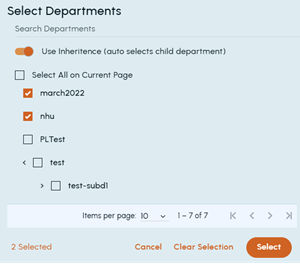 Select Any or All operator and then click Select Department . Select Any or All operator and then click Select Department . |
| Note: This option is available if the Arctera Insight Surveillance service is enabled for a user. | Senders Only : Filters data where only the sender belongs to the selected department(s). | A dialog box opens where you can choose one or more departments to apply as a filter. |
| Recipients Only : Filters data where only the recipient belongs to the selected department(s). | 1. Use the Search Departments field to quickly locate a department by name. | |
| 2. Toggle the Use Inheritance to include child departments of a selected parent department. | ||
| 3. Click Select All on Current Page to select every department visible on the current page. Else, select the required departments individually. The count of selected departments appears in the bottom of the dialog box. | ||
| 4. Click Select to confirm and apply them as a filter. | ||
| If you want to reset your choices, click Clear Selection . If you want to close the dialog without saving changes, click Cancel . |
Related information
Important
-
In Advanced Search, the search text input functionality is updated. In previous releases, when users were providing multiple text input with space, the default logical operator "AND" was getting applied. From now onwards, the default logical operator "OR" is getting applied to get user records.
This operator change from "AND" to "OR" is applied to all kind of searches. If users have previously used spaces while providing the search text inputs, their saved records (saved searches/standard searches/Ongoing searches) will be impacted as the operator is changed from "AND" to "OR".
-
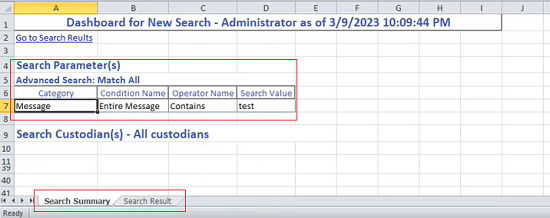
Based on the selected attributes, when you export the search report, the Search SummaryandSearch Report is generated as shown in the sample image below.
-
To perform query search, specify the following inputs in the Query Search tab.Note: Use the scroll bar to view the lengthy queries.
Custodians - Select All to search archives of all of the custodians that are associated with the case. - Select Custom to search archives of the particular custodians. The Manage button appears. Click Manage to open the Add/Remove Custodians . Expand Selected Custodians to view the custodians selected for this search. Expand Manage Custodians and select the custodians required for this search. Click Update to add these selected custodians as a search input. These custodians are listed under the Selected Custodians section. Query Search Specify the search query by providing keywords.
Guidelines for specifying queries
The application supports query searches only if the following necessary conditions are followed. Else, the application displays corresponding errors.
| Conditions | Examples |
|---|---|
| - | The search criteria must be used after the operator and before the query text. |
| - | The AND/OR/NOT operators must be written in capital letters. |
| - | The AND/OR logical operator is missing. |
| - | The extra space(s) between operators is not allowed. |
| - | The space after bracket is not allowed. |
| - | The space before colon is not allowed. |
Operator-specific conditions Spaces-specific conditions
-
To search for the Insight Surveillance item using the Item ID Filter, perform the following steps:Note: If you have a Insight Surveillance subscription and theShow Item ID Filterfeature is enabled in the Management Console, you can view theIdicon in the email preview pane as shown in the sample image below:
Click the Idicon to copy the encrypted Item ID, then selectAdvanced Filter, expandItem ID Filter, chooseIs Equal To , and paste the Item ID into the field as shown in the sample image below.
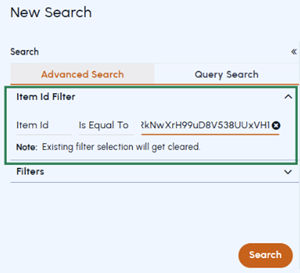
Note: When theItem ID Filteris selected, all other filters are cleared to return the exact matching item
-
Click Search.
-
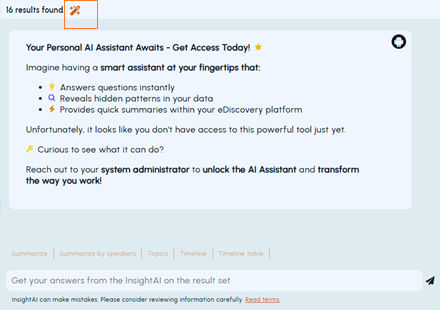
(Optional) To create a context of this search, click the InsightAI icon as shown in the sample image below.
The InsightAI icon is visible only if this service is enabled for your account. Acting as your built-in AI assistant based on Open AI GPT-4.1 Nano model, it delivers faster, smarter, and more reliable answers from both new and saved searches by generating context from emails, collaboration messages, and files.
You can use the predefined prompts or enter your own prompt (query) to generate context.
Note: For any support about this service, contact your system administrator.
-
Click Save Search.