
About the Alta eDiscovery user interface
Figure: Alta eDiscovery User Interface shows a typical view of the Alta eDiscovery user interface that an eDiscovery Administrator can see. All the tabs, options, and icons are clearly arranged with the modern layouts to ensure user friendliness. For easy navigation throughout the application, panes can be hidden and displayed as required. The options are easily available to navigate to the Veritas Alta View Compliance and Governance Management Console, the Veritas Alta Personal Archive, and the Veritas Alta Surveillance portals.
Note: The tabs, the nodes within each tab, and the features varies with the roles and privileges of your Veritas Alta Archiving account.
Figure: Alta eDiscovery User Interface
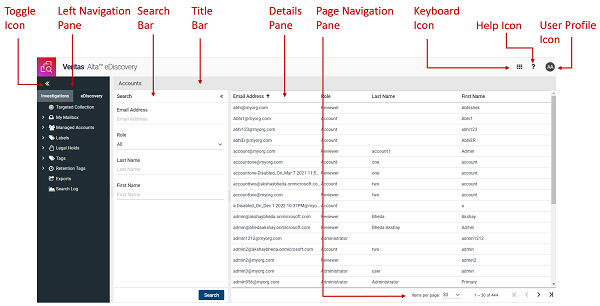
The selection tabs in the left navigation pane control access to the various functions and features of Alta eDiscovery.
After logging in to Alta eDiscovery, the landing page visible to you by default depends on your role in Alta eDiscovery. The following table explains the role and the corresponding landing page.
| Role | Default landing page |
|---|---|
| Administrator | eDiscovery > Reviewers |
| External reviewer | eDiscovery > Cases |
| Internal reviewer (if managed accounts are assigned) | Investigations > Managed Accounts > Accounts |
| Internal reviewer (if managed accounts are assigned) | Investigations > My Mailbox > Mailbox |
-
See About the search bar.