
Performing query searches using Analytics Dashboard
The Analytics Dashboard supports query searches only. Based on the data selected on charts, this query search provides you with the filtered archived review items.
To perform a query search using Analytics Dashboard
-
On the Investigationtab, in the left navigation pane, selectAnalytics Dashboard.
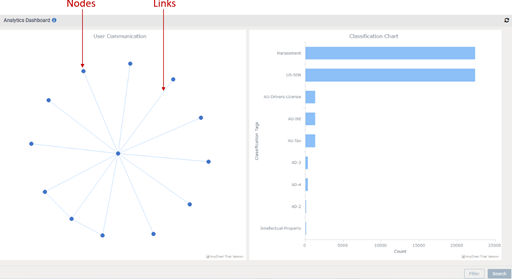
The application displays the User CommunicationandClassification charts for analysis of email communication of the top 50 users in the last 30 days.
-
On the User Communication chart, do the following:
-
Hover over nodes and links to view the user email addresses of individuals involved in communication.
-
Select the data in any chart, as convenient, for which you want further analysis.
-
If you want to select data from the User Communication chart, select nodes or links . To select a node, click on the node. To select multiple nodes, press and hold the CTRL key on your keyboard, then click on the nodes you want to select.
-
If you want to select data from the Classification chart, select bars. To select a single bar, click on the bar. To select multiple bars, press and hold the CTRL key on your keyboard, then click on the bars you want to select.
-
-
As the charts are interconnected, selecting the data in the User Communicationchart leads to the automatic selection of corresponding data in theClassification chart and vice versa.
-
If required, click the Refresh icon to refresh the monitoring data.
-
For better readability of charts:
-
You can select and drag the nodes away from crowded areas to separate them from neighboring nodes.
-
Keyboard and mouse users can use CTRL + Mouse wheel up/down to zoom in/out the chart view.
-
Touchpad users can use a two-finger pinch to zoom in or stretch out to zoom out the chart view.
-
-
In the bottom-right corner of the page, click Filter.
The application displays only the selected node or link and retrieves the communication threads among the individuals involved in the communication. In case there is no data for the selected node or link, the application prompts that the information is not available.
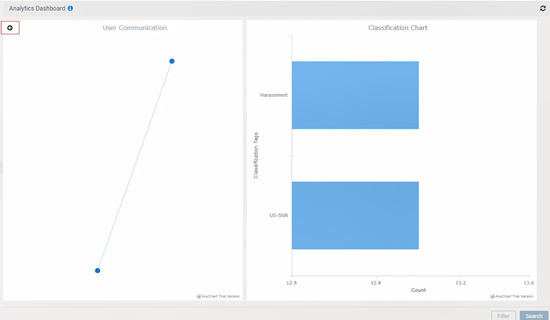
Note: You can only select one filter criteria at a time. If you wish to search communication data using a different filter, in such a scenario, click theBackicon, choose the desired link or node.
-
Click Search.
Before redirecting you to the search results, the application warns that your selected filter will be cleared if you click Yes on the confirmation message.
-
Click Yes on the confirmation message if you are sure with the data you have selected in the charts.
Based on the data selected on charts, this query search provides you with the filtered archived review items.
Related information