
Capture Notifications
The Capture Notifications tab allows system administrators to configure the Insight Capture-specific notification preferences and view related event notifications in the Management Console.
This tab is available under Reports > Notifications only if any of the following services is enabled:
-
Capture Primary Service
-
OneDrive for Business
-
Microsoft Teams Secondary Service
To view the Insight Capture-specific notifications
-
In the left navigation pane, select Reports and Notifications>Notifications, and access theCapture Notifications tab.
-
Configure the notification preferences.
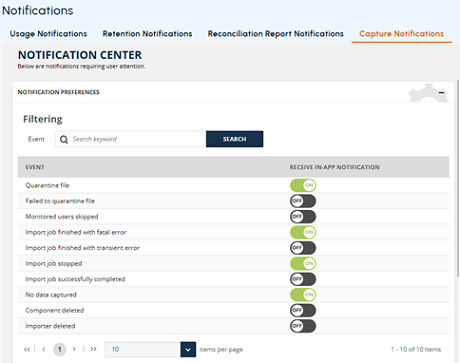
On the NOTIFICATION CENTER page, expand the NOTIFICATION PREFERENCES section by clicking the plus (+) icon or the section header. The list of available events is displayed.
-
To find a specific event, use the navigation arrows to move between pages, or enter a keyword in the Eventfield and clickSearch.
-
For the searched event, use the Receive In-App Notification toggle. Turn ON***to enable notifications for the event, turn***OFF to disable it. Repeat the steps to configure notification preferences for additional events as and when needed.
-
After enabling the required events, scroll down to view the NOTIFICATIONS section.
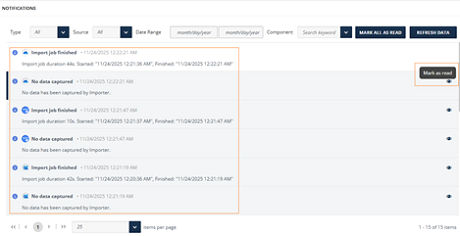
The system displays notifications based on the configured event preferences as shown in the sample image below.
-
Click Refresh Data to load the latest notifications.
-
If the list is extensive, use the available filters to refine the results. You can sort notifications by Status(Read, Unread, Failure, Warning, Info, Success),Source(System, Importer),Component, ortime period. Use navigation arrows to move between the pages.
-
To mark all displayed notifications as read, click MARK ALL AS READ. To mark individual notification as read, click the eye icon next to a notification.
Related information