
About Targeted Collections
A targeted collection is a cloned data set of an archive collector which is configured in the Arctera Insight Management Console. You can create and manage targeted collections in the Insight eDiscovery. These collections allow retrieval of filtered content for eDiscovery purposes. After an administrator configures the archive collector for your organization, the content that matches the filter criteria can be collected in Insight eDiscovery.
Before creating a targeted collection in Insight eDiscovery, make sure the following prerequisites are met in the Management Console
-
the customer is already created
-
the service for this collector is enabled for that customer
-
the Archive Collector is configured
After creating a targeted collection, the Targeted Collection table displays all collectors along with their configuration status, type, and metadata. Use the table to monitor collector readiness before assigning them to a case. Refer to the sample image below.
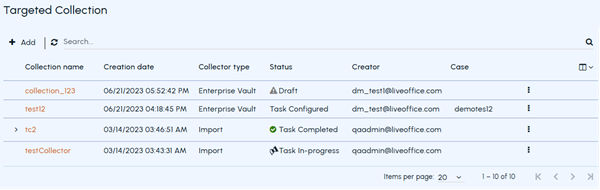
| Columns | Description |
|---|---|
| Collection name | Displays the name of the targeted collection. |
| You can expand the row to view collection details such as items collected, items received, items archived, items duplicate, items rejected, and items failed. You can also download the Collection Defensibility Report . | |
| Creation date | Shows the date and time the collection was created. |
| Collector type | Indicates the type of a collector. |
| Status | Displays the current status of the collector. |
| - Draft : The collection status is not yet configured or the task is in an incomplete state. | |
| - Task In-progress : The collector is configured and the collection task is automatically queued or resumed for data collection. | |
| - Stopped : The collector is stopped manually for some reason. If you want to restart the stopped collection, you can start the collector from the More actions icon. The status then again updates to Task In-progress . | |
| - Task Completed : The collection task is successfully completed and the Collection Defensibility Report is available to download. | |
| Creator | Displays a name of a user who has created the collector. |
| Case | Displays the name of cases (to which the items are sent) assigned to the collector, if applicable. |
| More actions icon | Provides options to manage the collector. The available options are Start, Stop, Restart, Hide, and Show. See Managing Insight Capture collectors from Insight eDiscovery . |
Related information
Managing investigations
Adding targeted collection for Microsoft TeamsAdding targeted collection for OneDrive for BusinessAdding targeted collection for Exchange OnlineAdding targeted collection for Enterprise VaultAdding targeted collection for data importManaging Insight Capture collectors from Insight eDiscoverySending collected data to cases