
Viewing transcription of media attachments
You can start with a new search or access previous, ongoing, standard, or advanced ECA searches as needed.
To view transcription of media attachments
-
Navigate to Emails, Collaboration, or Files tab, and open the search result.
-
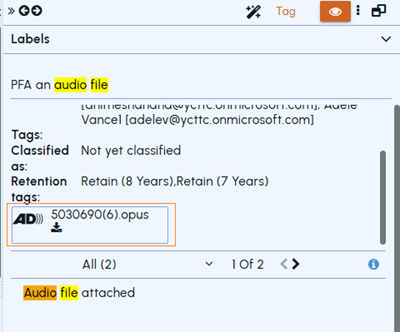
Search for and select the review item that contains media attachment (marked with the Audio Description icon.). Refer to the sample image below.
-
Click the Audio Description icon.
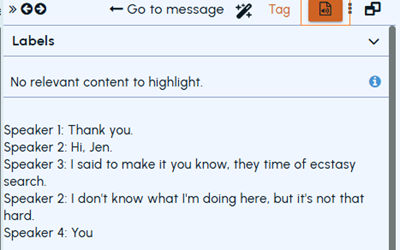
The application displays the media transcription in the preview pane. At the same moment, the Smart Transcript icon (media icon) appears on the preview pane toolbar as shown in the sample image below.
-
Click the Smart Transcript (media) icon to opens the attachment in a new window, along with playback. Refer to the sample image below.
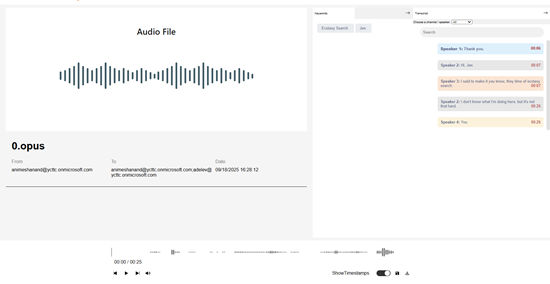
The following functionalities are available for users:
-
Audio File Details
-
Displays the file name (for example, xyz.opus).
-
Shows sender (From), recipients (To), and the Date/Time of the email.
-
-
Audio Waveform Panel
-
Visual representation of the audio file.
-
Helps users see playback position and intensity of sound across the recording.
-
-
Transcript Panel
-
Identifies speakers (for example, Speaker 1, Speaker 2) and lists conversation text aligned with timestamps.
-
Highlights each line with the exact time in the audio file.
-
Provides a Search box to locate keywords in the transcript. Allows filtering by channel/speaker.
-
-
Keywords Section
-
Displays matched keywords (for example, Ecstasy Search, Jen).
-
Enables quick navigation to relevant parts of the transcript.
-
-
Download Option : Allows downloading of the audio file for offline use.
-
Timestamps Toggle Option : Show or hide timestamps alongside transcript text.
Related information