
Exporting emails
To export emails
-
On the eDiscoverytab, clickCases.
-
Search for and select the case in which you want to search emails.
The selected *Case_Name*node appears belowCases.
-
Click New Searchto create a new search. Else, expandResearch SetsorReview Sets to select existing search.Note: You can access existing saved searches of the selected case from theReview SetandResearch Setnodes. Alternatively, you can clickNew Search, perform advanced search or query search to get the expected items. SeePerforming Advanced Search and Query Search. After performing a new search or accessing the existing searches from review set and research sets, the application displays the filtered emails, collaboration messages, and files in the details pane.
-
On the Emailstab, select the emails you want to export. ClickExport , and do any of the following:
-
Click Export current page to export all the emails displayed on the selected page.
-
Click Export selected emails to export all the selected emails from the search.
-
Click Export all emails to export all the emails available search.
-
Click Export by custodians to export all the emails from the selected custodians.
-
-
Click Export , and do any of the following:
-
If you are exporting all emails in the search, all emails displayed on the page, or selected emails, in the Export Options dialog box, do the following:
Message Format The available message formats are\: - Clearwell - EML - EML with EDRM - PST with EDRM - MSG with EDRM - FTI-RingTail - EDRM Only - PST - OriginalEDRM If you select this option, the exported file includes emails in both MSG and EML formats, allowing you to work with the emails in the format that best suits your needs. Besides this, the exported file includes additional files, namely - edrmXML.xml and HTMLReport.html in their original formats. These files facilitates a smooth transfer of electronically stored information (ESI) between different software programs during the electronic discovery process. - Original If you select this option, the exported file includes emails in both MSG and EML formats, allowing you to work with the emails in the format that best suits your needs. Note: TheOriginalEDRMandOriginalmessage formats are available to the users that are listed in theConfiguration_Overridentable in the Arctera Insight Archiving database. If you want to avail these options in theMessage Formatdrop-down field, contact Arctera support. Include Journaling Envelope Select this option to include journaling envelopes, which contain information about email recipients such as distribution lists. Exclude Exported Messages Select this option to exclude the exported messages. Enable AES-256 Encryption Select this check-box if you want to secure the access of the downloaded export batch. Export Name Provide the name for the batch you want to export. By default, it takes the Search Name. You can change it if required. Export Password Enter the password that you want end user to provide when they access this exported batch of messages. Confirm Password Repeat the same password for confirmation. Generate Azure SAS URL Note: Users can see this button only if theExport to Azure private storage locationfeature in the Arctera Insight Management Console is enabled for them. Users can export items to their private Azure Blob storage location. Click Generate Azure SAS URL to get the Azure Blob SAS URL to access the location and save it for future use. For security reasons, the application does not show this URL the next time. However, if the SAS URL is misplaced for any reason, click Generate Azure SAS URL again to generate a new SAS URL and save it securely. After you click Export on the Export Options dialog box, all the selected items are exported to the Azure private storage location. You can use Microsoft Storage Explorer to access the exported items. Share Export Click Select Admin to choose the recipients of this batch export and click Update . Note: You need to manually share the Export Password with the administrators and follow all the security specific rules of the organization. -
If you are exporting emails by custodians, in the Add/Remove Custodians dialog box, search for and select the custodians.
-
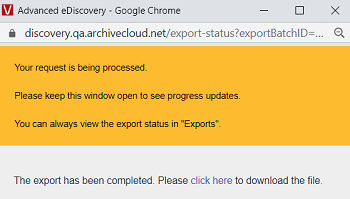
Click Export.Note: The exported batch can either gets downloaded as a single or multiple file segments.
-
Click Click here to download the exported batch of emails.
-
To confirm the status of batch export, on the eDiscoverytab, under the selected case node, selectExports , and search this export batch name.
Related information