
Logging in
Before you can access your archived messages, you must log in to Insight Personal Archive using your Arctera Insight Archiving credentials.
To log in
-
In a supported browser, navigate to your Insight Personal Archive URL.Note: Contact your administrator if you do not know the Insight Personal Archive URL or need help signing in. In addition, refer toFAQs: Arctera Insight SaaS URL Updates.
-
On the Login page, do the following:
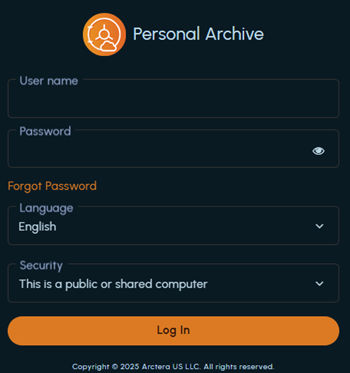
User name Enter your Arctera Insight Archiving user name. Password Enter your Arctera Insight Archiving password. Language To change the language for the Login page, select a language from the Language drop-down menu. This setting applies only to the Login page. Note: To change the language of the entire application user interface, update your localization settings on theSettingspage. SeeSetting application preferences. Security - This is a public or shared computer : This option is selected by default. The application prompts you to enter your credentials each time you access the Login page and automatically signs you out after 20 minutes of inactivity. - This is a private computer : The application caches your credentials for 10 hours after a successful login, allowing you to bypass the Login page. To clear the cached credentials, log out of the application. -
Click Log In.
-
If the multi-factor authentication (MFA) is enabled for you, the OTP field appears on the authentication screen.
This email-based authentication and the Time-based One Time Password (TOTP) authentication enhances the access and data security of Arctera Insight Personal Archive. Administrators have the permission to enable or disable multi-factor authentication at the user and tenant level.
-
If the email-based authentication (EML) is enabled for you, a one-time password (OTP) is sent to your registered email address for authentication and access to the application. This OTP remains valid for 5 minutes from the time of receiving the email.
Manually enter the OTP on the authentication screen within 5 minutes. Copy-pasting the OTP is not allowed. If you fail to provide OTP within 5 minutes of receiving it, the application displays a message that the OTP has expired. To obtain a new OTP, click Resend OTP. The application sends a new OTP.
-
If the Time-based One Time Password authentication(TOTP) is enabled for you, the application redirects you to anAuthenticator Setup page as shown in the sample image below.
Scan the QR Code using the Google or Microsoft Authenticator app on your mobile phone at the time of your first login
Configure the Authenticator app on your mobile phone.
Click Continue to get a time-based OTP in the Authenticator app.
Enter that OTP in the OTPfield of the Authentication page, and clickContinue.
Configuring the Authenticator app on your mobile phone
If you have previously created an account for same user, please remove that entry and attempt to complete the setup again.
To install the Microsoft Authenticator app on your phone
-
While installing the app, if prompted, allow notifications about the app.
-
Upon installation, open the app and click the plus (+) icon at top and select Work or School accountorOther account.
-
Add your work account by using any of the following methods:
-
Use the installed authenticator app to scan the QR Code provided on the authentication page of Arctera Insight Archiving application.
-
Sign in with your application credentials and follow the screen instructions.
-
Upon successful scanning or signing in, your account gets connected to Microsoft Authenticator.
To install the Google Authenticator app on your phone
-
While installing the app, if prompted, allow notifications about the app.
-
Upon installation, log in with your Google account credentials. Scroll down and click the plus (+) icon.
-
Scan the QR Code with the Google Authenticator app. Your account gets connected to the Google Authenticator app.
Resetting the Authenticator device
If you accidently remove the account from authenticator app or misplace the device on which the app is installed, you can contact your administrator to request for resetting the Authenticator device for you.
About the New Features updates
Upon successful sign-in, the New Features window appears, presenting the latest release updates for Arctera Insight Management Console, Insight eDiscovery, Insight Personal Archive, Insight Capture, and Insight Surveillance.
-
To temporarily hide this window, click Close.
-
To access this window later, click the profile icon and choose Show New Features.
-
To permanently hide this window, click Do Not Show Again. Subsequently, upon next login, this window will no longer appear. To enable its visibility, contact your system administrator. However, it will reappear automatically with the next release updates.
-
To read the complete release notes document, click View Detailed Release Notes.
Related information