
Using folder search
This feature improves search efficiency by allowing users to search within specific folders and subfolders instead of across the entire archive. This is especially useful when similar content exists in multiple folders and the user wants to narrow results to a targeted location.
Users can view this feature in Insight Personal Archive only when the system administrator enables the Enable Folder Search in Personal Archive service in Arctera Insight Management Console. This feature is disabled by default. Once enabled, users can perform folder-specific searches.
Users can save Folder Search queries in the same way as other saved searches.
To use folder search
-
In the left pane, select the Archives tab.
-
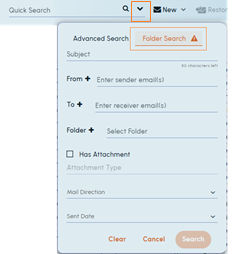
On the toolbar, click the Expansion icon to show the Folder Search options. as shown in the sample image below.
-
Click the Folder Search tab and do the following:
Subject (Optional) Enter keywords or the full subject line (up to 50 characters) to search for folders that contain emails with matching subjects. From + Enter the email address of the email sender (up to 50 characters) to search for folders that contain emails sent by that sender. Alternatively, you can follow the steps mentioned below\: 1. Click the Plus icon next to From . The Select Names: Global Address List dialog opens. 2. Choose a search option (Name only, All columns, or Show Email Aliases) and enter a keyword in the Search box. 3. Navigate through the results, then select one or more entries. 4. Verify that the selected entries are displayed in the From field, and click Ok . To + Enter the email address of the email recipient (up to 50 characters) to search for folders that contain emails sent by that sender. Alternatively, you can follow the steps mentioned below\: 1. Click the Plus icon next to To . The Select Names: Global Address List dialog opens. 2. Choose a search option (Name only, All columns, or Show Email Aliases) and enter a keyword in the Search box. 3. Navigate through the results, then select one or more entries. 4. Verify that the selected entries are displayed in the From field, and click Ok . Folder + 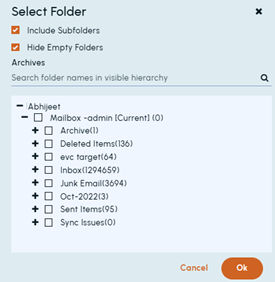 1. Click the Plus icon next to Folder . The Select Folder dialog opens.
2. Select the Include Subfolders checkbox to include subfolders in the search. 3. Select the Hide Empty Folders checkbox to exclude folders that do not contain emails. 4. Verify that the selected entries are displayed in the Folder field. Has Attachment Select this checkbox to search for folders that contain emails with attachments only. Attachment Type Specify the attachment type. This field is editable only when you select the Has Attachment checkbox. Mail Direction Select mail direction (All emails, Inbound or Outbound) to search for folders with emails matching that direction. Sent Date Select or customize the duration to search for folders that contain emails within that date range. Note: Click Cancel to exit the dialog box, or click Clear to reset the fields. -
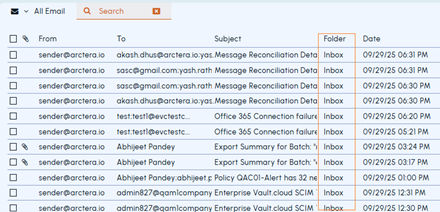
Click Search. TheSearch tab appears. The Folder Name column shows the folder name for each email.
-
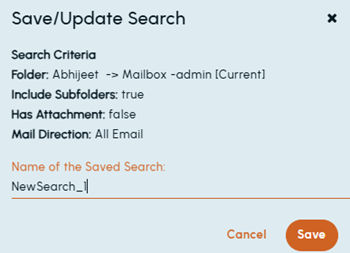
To save this result, on the toolbar, click Searches>Save/Update Search.
-
In the Save/Update Search dialog box, enter a unique name for this search.
-
Click Save.
Related information