
Creating a new search
The Advanced Search feature provides a unified search experience across multiple data sources, helping you quickly locate relevant information in your personal archive. It delivers a consolidated, intuitive, and flexible search interface that enables faster retrieval of information across communication and content platforms.
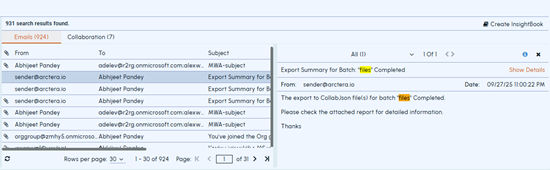
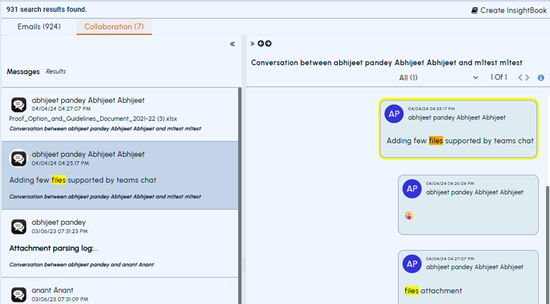
After the results load, you can preview emails and collaboration items.
Note: If the InsightBook feature is enabled, you can also create a new InsightBook directly from this tab. See About InsightBooks.
To create a new search
-
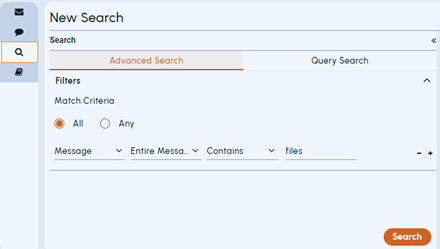
Select the Advanced Search tab.
-
To perform advanced search, specify the following inputs in the Advanced Search tab.
Filters Expand Filters and set the filter operator values. The operators are explained in a table below. - Select All to match all conditions you have provided. - Select Any to match any of the conditions you have provided. - Click + to add new search clauses, and complete a new row for each clause. - Click - to remove search clauses that are not required. - Searches are not case-sensitive. The search supports phrase search, Boolean operators, proximity search, and wildcard search. See Search syntax .
The Filter operators are listed below:
| Message | Entire Message | Contains / Doesn't Contain |
|---|---|---|
| Subject + Body | Contains / Doesn't Contain | - |
| Subject | Contains / Doesn't Contain | - |
| Body | Contains / Doesn't Contain | - |
| Inbound Message (AND) | Yes / No | - |
| Outbound Message (AND) | Yes / No | - |
| Is Hidden | Yes / No | - |
| IP Header | Contains / Doesn't Contain | - |
| Date Sent/Modified(AND) | Is Equal To | Select a date |
| Date Sent/Modified(AND) | Before | Select a date |
| Date Sent/Modified(AND) | After | Select a date |
| Date Sent/Modified(AND) | Within Range | Select a date range |
| Participants | All Senders and Recipients | Contains / Doesn't Contain |
| Participants | Senders Only | Contains / Doesn't Contain |
| Participants | Recipients Only | Contains / Doesn't Contain |
| Participants | To/Cc | Contains / Doesn't Contain |
| Participants | To | Contains / Doesn't Contain |
| Participants | Bcc | Contains / Doesn't Contain |
| Attachment | Has Attachment | Yes / No |
| Attachment | File/Attachment Name | Contains / Doesn't Contain |
| Attachment | File Attachment Type | Contains / Doesn't Contain |
| See Searchable attachment types . | ||
| Source Type | Is : Filters results that match the selected source type(s) | Select one or more sources as needed. |
| Is Not : Excludes results that match the selected source type(s). |
-
To perform query search, specify the following inputs in the Query Search tab.Note: Use the scroll bar to view the lengthy queries.
Related information
Guidelines for specifying queries
The application supports query searches only if the following necessary conditions are followed. Else, the application displays corresponding errors.
| Conditions | Examples |
|---|---|
| - | The search criteria must be used after the operator and before the query text. |
| - | The AND/OR/NOT operators must be written in capital letters. |
| - | The AND/OR logical operator is missing. |
| - | The extra space(s) between operators is not allowed. |
| - | The space after bracket is not allowed. |
| - | The space before colon is not allowed. |
Operator-specific conditions Spaces-specific conditions
-
Click Search.
-
To review emails, access the Email tab and click the item you want to review. It supports hit highlighting functionality. See About Hit Highlighting.
-
To review collaboration messages, access the Collaboration tab and click the item you want to review. It supports hit highlighting functionality. See About Hit Highlighting.
-
(Optional) If you want to create a new InsightBook for this search result, click Create InsightBook.
The Create InsightBook pop-up appears as shown below.
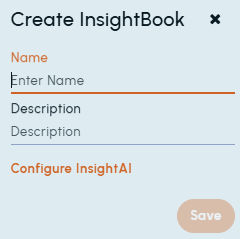
Type a unique name and provide description of the Insightbook. Click Save. For more information, See Creating InsightBooks.Note: TheInsightAI icon is visible only if this service is enabled for your account. Acting as your built-in AI assistant based on Open AI GPT-4.1 Nano model, it delivers faster, smarter, and more reliable answers from both new and saved searches by generating context from emails, collaboration messages, and files. You can use the predefined prompts or enter your own prompt (query) to generate context.