
Acknowledging a successful configuration
To acknowledge a successful configuration
-
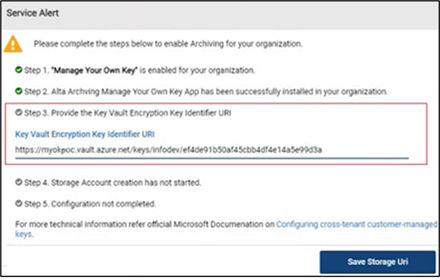
On the Service Alertwindow, paste the key identifier, which you have copied as explained in the previous task, into theStorage URI field.
-
Click Save Storage Uri.
The application saves the Key Vault Encryption Key Identifier.
-
Ensure that the Storage Account is created on the Azure portal.
After the Key Vault Encryption Key Identifier is successfully added, the system automatically creates a corresponding storage account.
-
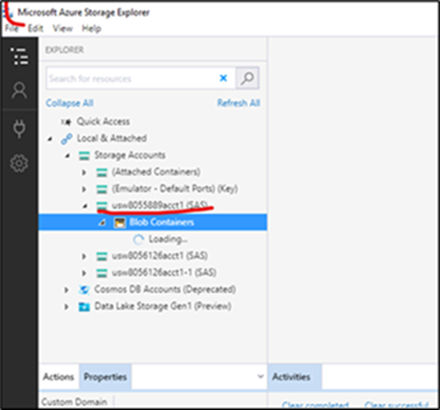
To locate the storage account on the Azure portal, go to Storage Accounts and search using the following format:\< environment\>\<groupID\>. For example,usw8054120acct.
-
To access the data downloaded from the storage account, go to Microsoft Azure Storage Explorer.
-
Ensure that the Service Alert window displays all the steps marked as completed.
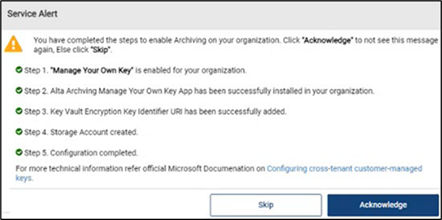 Note: The application proceeds with the remaining steps mentioned on the Service Alert window only if the providedStorage Key URIis valid.
 -
Click Acknowledgeto confirm successful provisioning and prevent further display of this service alert. If you are not sure, clickSkip.
-
To confirm if the MYOK feature is enabled for you, on the Management Console, select Policy Management>Archive Options.
-
Ensure that the status under the Manage Your Own Keys section is set to Enabled.
Related information