
Installing the Azure App and assigning it the Admin role
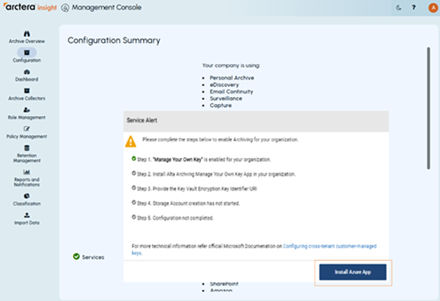
After the Arctera Insight Management Console Super Administrator enables the MYOK feature for the customer account, the customer account administrator receives a service alert upon logging in. The alert prompts the administrator to complete the MYOK configuration.
Note: Until the setup is complete, the Management Console remains restricted, and other features remain inaccessible.
Prerequisites: Ensure that you are the subscription owner of the Azure Subscription where the encryption key will be created.
To install the Azure App and assign a role to it
-
Log in to the Management Console with the administrator credentials.
-
Ensure that the Service Alert notification is received and displayed immediately after login.
-
On the service alert window, click Install Azure App.
The application redirects you to the Azure Sign-in page.
-
Enter your email and password and click Sign in.
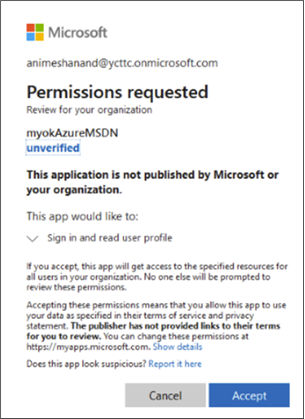
If permission to install is denied, click Retry Install Azure App.
-
Click Acceptto allow the requested permissions to initiate the installation. This app gets installed on the customer's Azure subscription. The application redirects you to theService Alert window.
-
On the service alert window, specify the Storage Key URI.
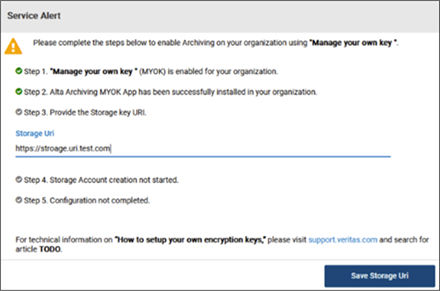 Note: To obtain the Storage Key URI, access the Microsoft Azure portal and sign in using the same user credentials that were used to install the Azure app. See SeeGenerating a Storage Key URI..
 -
Click Save Storage URI.
Related information