
Analyzing sample content for policy matches
To analyze sample content for policy matches
-
Do one of the following:
-
To analyze content against one or more specific policies, select the required policy or policies, and then click Analyze. Alternatively, select the Actions menu (⋮) for a policy and click Analyze.
-
To analyze content against all policies or a predefined policy category such as the GDPR and Personal Data policies, click Analyze in the left navigation menu.
The Analyze page displays the available policy types.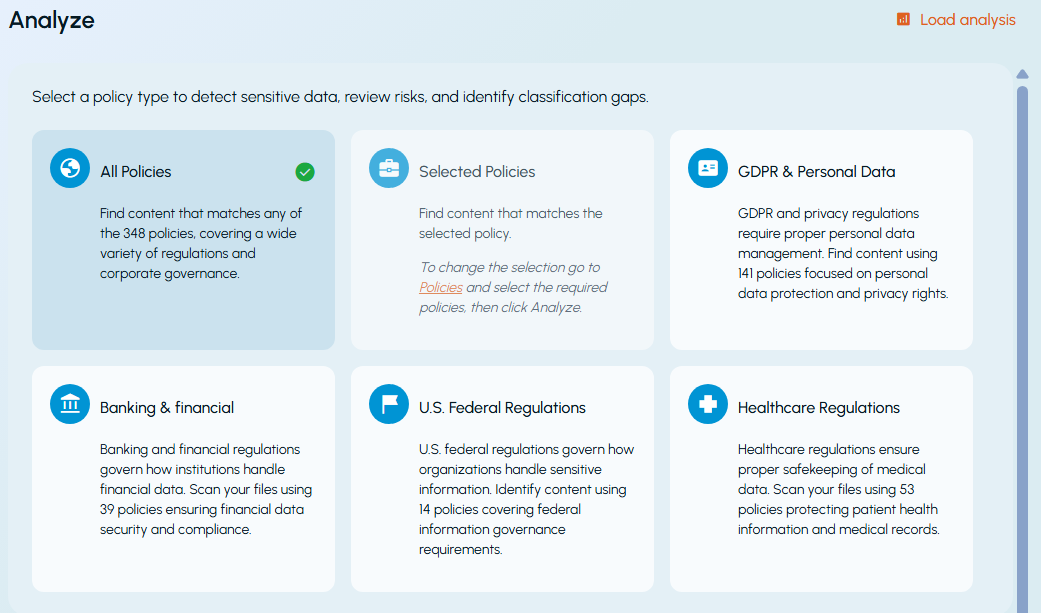
-
-
Select the required policy type. Available policy types include:
-
All Policies
-
Selected Policies
-
GDPR & Personal Data
-
Banking & Financial
-
U.S. Federal Regulations
-
Healthcare Regulations
-
-
Drag and drop a local or network folder containing the files to analyze.
-
(Optional) Select Perform sentiment analysis to include sentiment analysis during classification.
-
Click Start Analysis.Note: The Analyze feature does not analyze image, audio, video, or encrypted files because they do not contain analyzable text or cannot be processed. Each analysis supports up to 20,000 files, with a maximum file size of 10 MB per file.Wait for the analysis to complete. The analysis duration depends on the number and size of files being analyzed.Once completed, Analysis Dashboard is displayed.
-
Review the analysis results using the available tabs:
-
Overview – Displays a summary of the analysis results and visualizations.
-
Sensitive Files – Displays sensitive files together with their risk levels and risk scores.
-
Duplicate Files – Displays duplicate files with their associated risk information.
-
Visualization – Displays a word cloud of entities, patterns, policy conditions, people, and locations.
-
Sentiment Score – Displays sentiment analysis results when sentiment analysis was enabled.
-
-
To preserve the results, click Save Analysis. To export them, click Download report.For more information about the analysis results, see Analysis Dashboard.
Related information