
Using the Diff View
To use Diff View, select a specific audit entry and click the eye icon (View Changes).
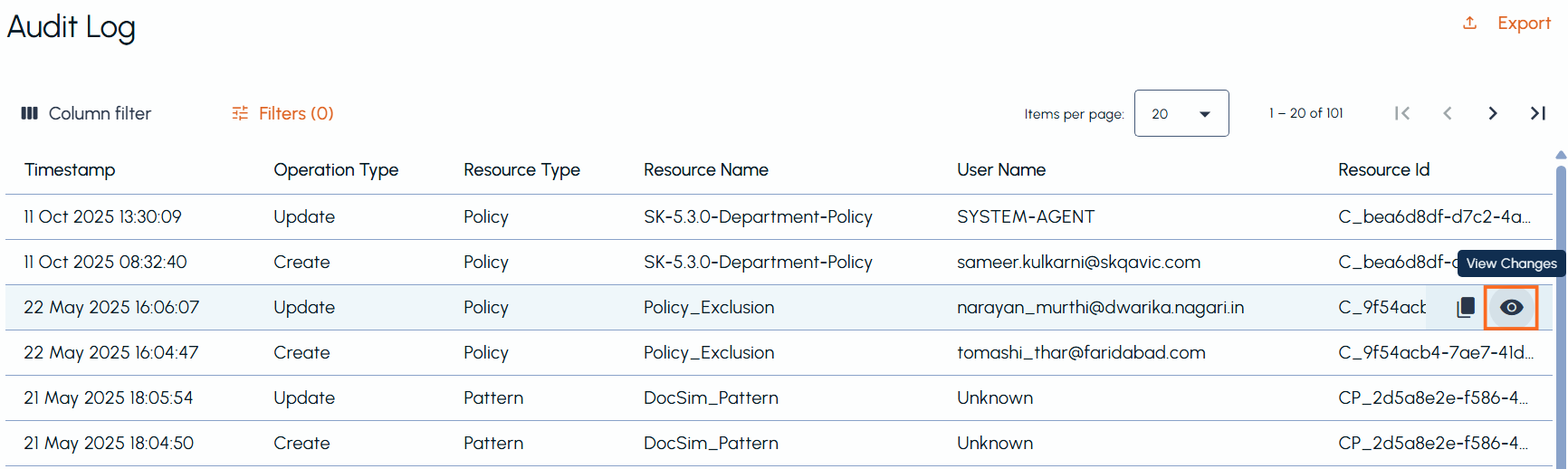
The Diff View displays a side-by-side comparison of the previous and updated versions of the selected resource. The modified sections are highlighted with color-codes for easier analysis. The change highlights feature in the Diff View is currently available for comparisons.
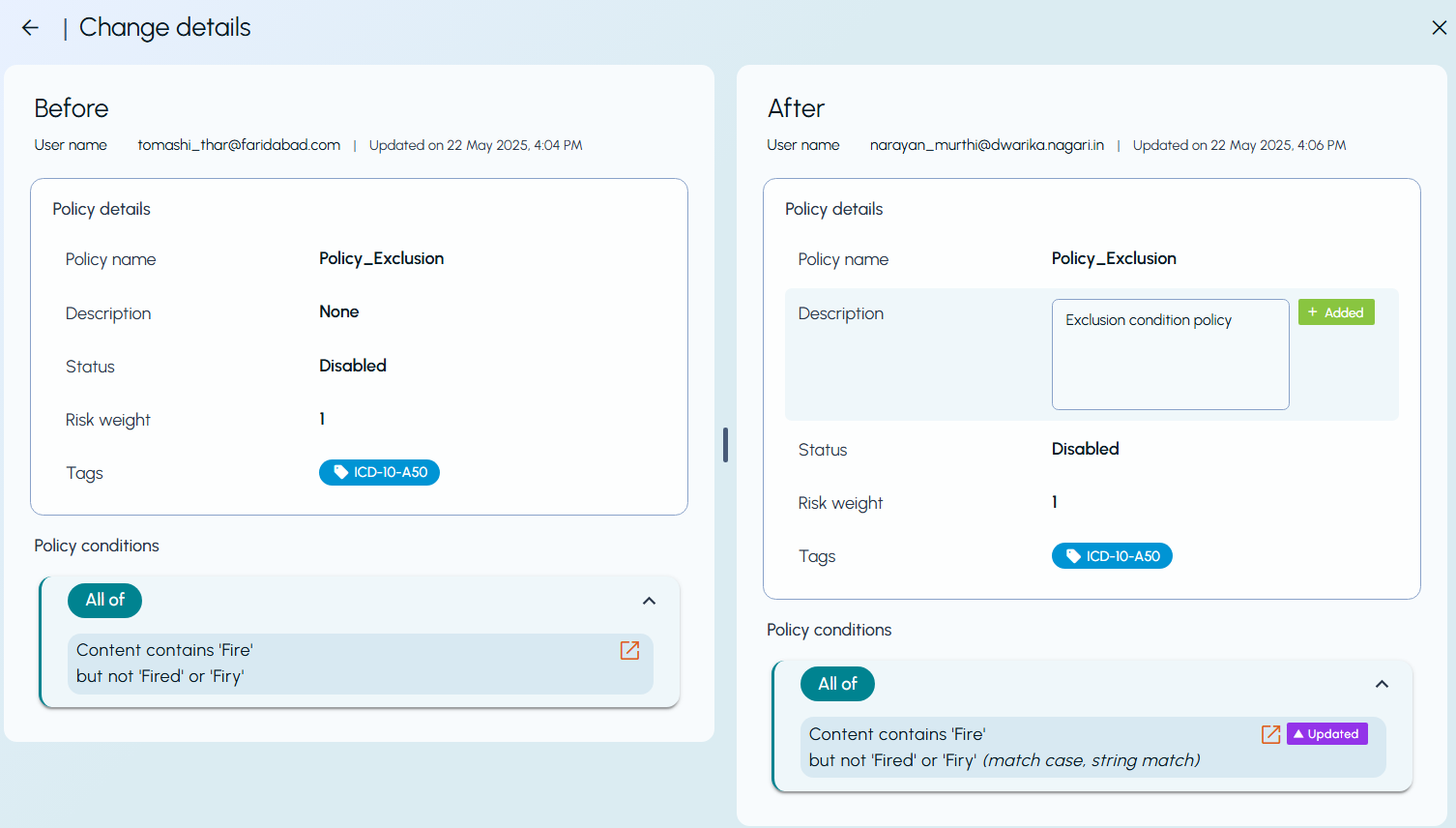
Each type of change is represented using a specific color as:
-
Green — Added content
-
Purple — Updated content
-
Red — Deleted content
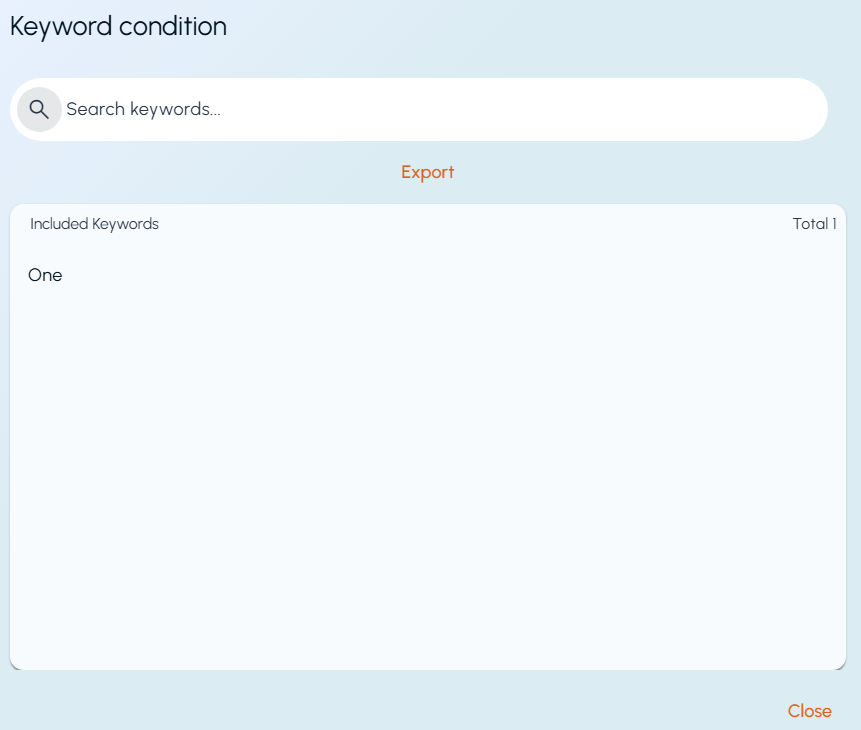
For updated policy conditions, click the open in new window option next to Updated. The Keyword condition window is displayed. Use this window to view the keywords included in the updated condition.
Known limitations
-
The audit side-by-side Diff View may not render the correct changes when edit or reset operations are performed on a built-in policy.
-
The highlighting is designed to maximize visibility of changes; however, it may not be 100% accurate in all cases.
Related information