
Enabling or disabling policies
By default, all the policies are disabled. You must enable a policy if you want Arctera Classification to check for and tag the items that match the policy.
Note: Enabling a lot of policies can affect performance. In addition, policies with complex conditions take longer to process than those with simple conditions.
To enable or disable policies
-
In the left navigation pane, click Policies.
-
To enable or disable a single policy, search for and select that policy, click the Actions menu (⋮) at the end of a policy, and click Edit.The Edit Policy dialog box appears.In the Status field, select Enabled or Disabled for the corresponding action.
-
To enable or disable multiple policies simultaneously, either search for specific policies or select policies.In the right pane, the application displays the number of policies selected. Click Edit.
-
In the Status field, select Enabled or Disabled for the corresponding action.
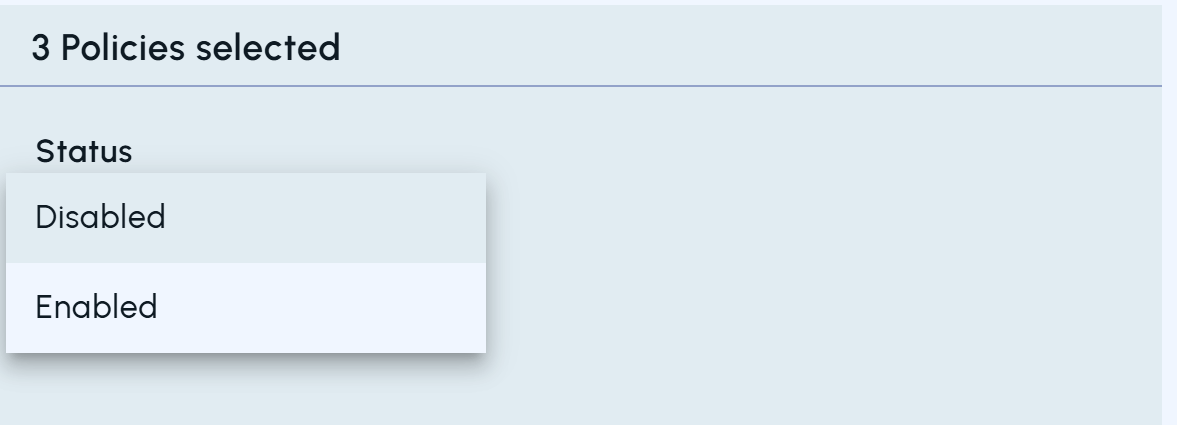 Enabling all policies in a single operation is prohibited as there are multiple factors that you need to consider before enabling a policy. If you select all policies and try to enable them, an error message will appear on the screen, prohibiting the operation.
 -
Click Save.
Related information