
About policies
Arctera Classification evaluates submitted items against a set of policies. Each policy defines one or more conditions that an item must satisfy before a classification tag is assigned.
For example, you can create a policy to assign the tag Financial Distress to items containing terms such as fraud, cover up, and write off.
Arctera Classification includes a large collection of built-in policies covering regulatory and industry standards. You can also create custom policies to meet your organization's requirements.
Note: Built-in policies are disabled by default. Enable a policy to allow Arctera Classification to evaluate and tag matching items.
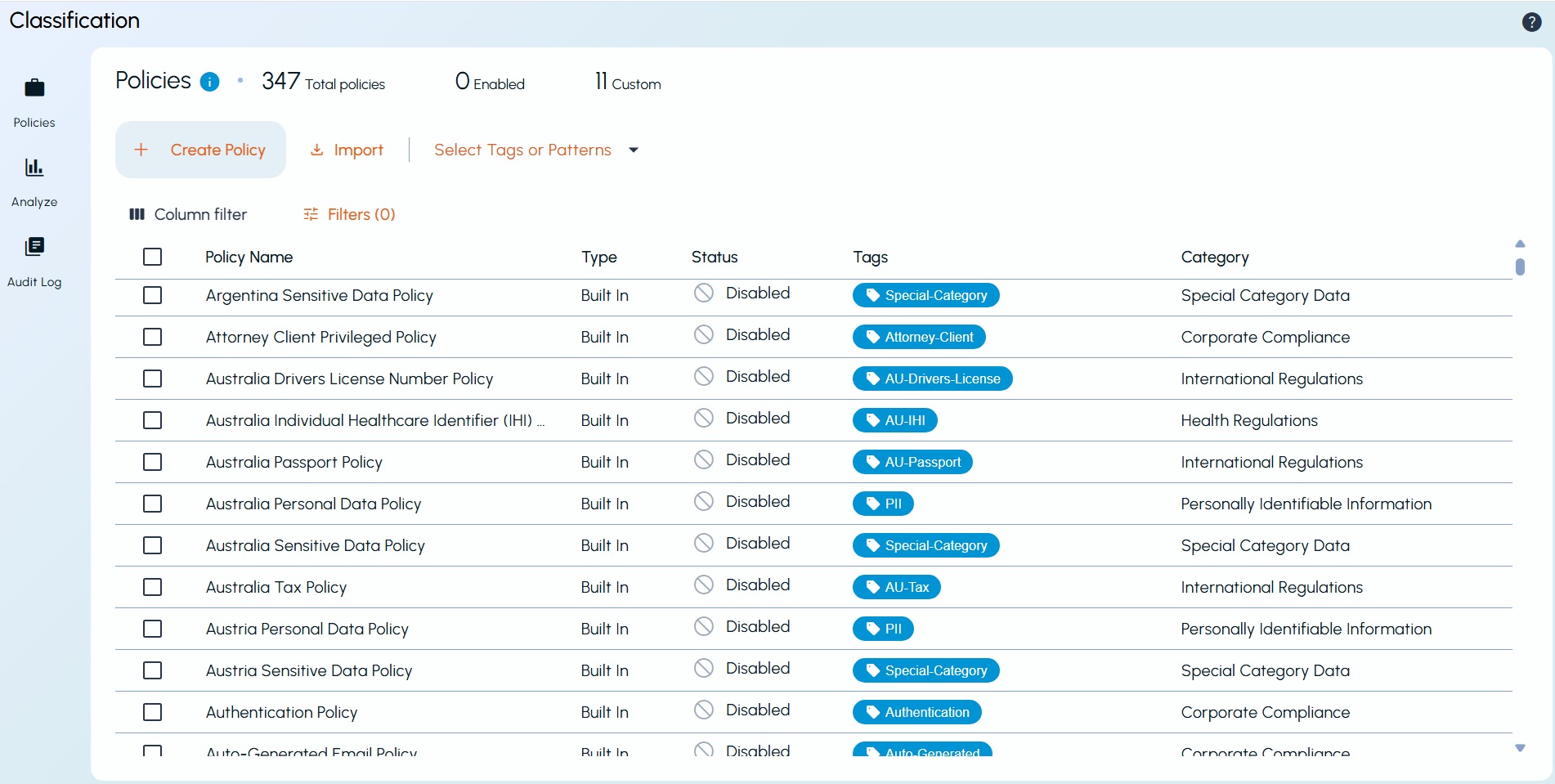
The Policies page is the central location for creating, managing, testing, and reviewing classification policies.
It provides:
-
Summary information about available policies.
-
Options to create, import, and manage policies.
-
Search, filter, and column customization.
-
Bulk operations for selected policies.
-
A details pane for reviewing policy information.
-
Policy testing before deployment.
Policy list
The policy list displays all available policies together with information such as:
-
Policy Name
-
Type
-
Status
-
Tags
-
Category
Click the Actions menu (⋮) at the end of a policy row to access additional actions such as Edit, Copy, Enable, Disable, Test, Export, Compliance Export, Analyze, Reset, and Delete. The available actions depend on the policy's type and status.
Click a policy to open its details.
Policy details
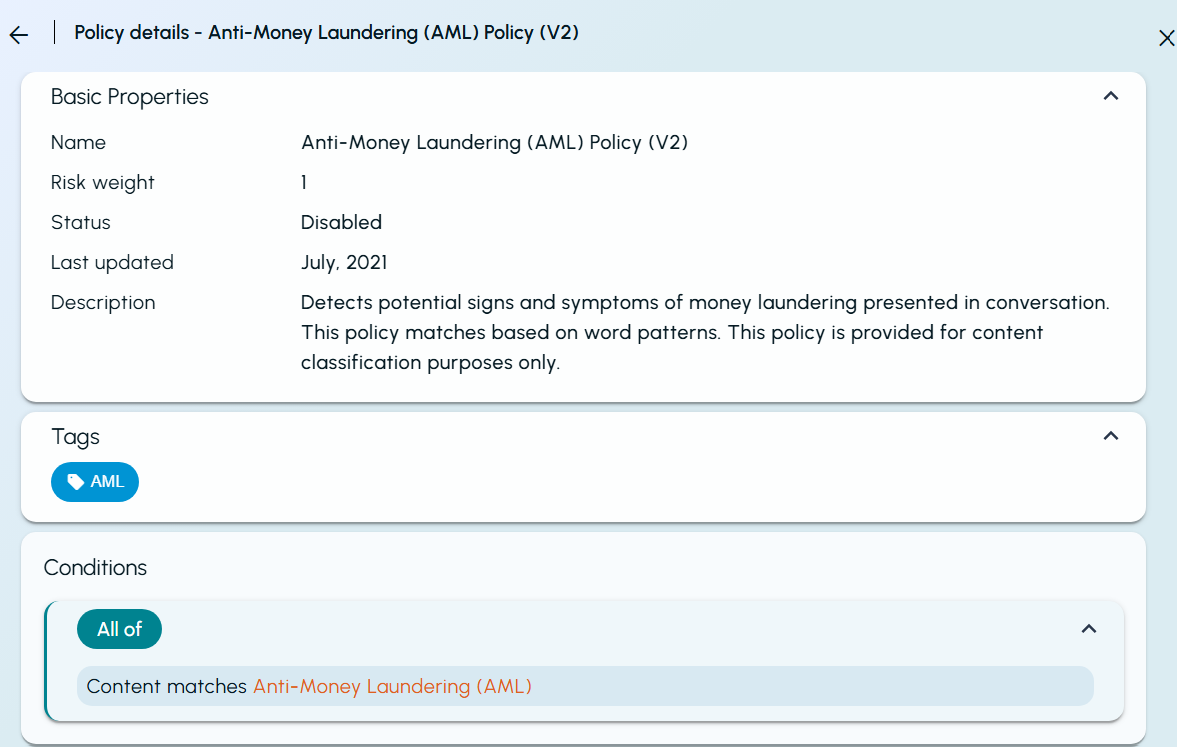
The details pane displays detailed information about the selected policy, including:
-
Basic properties
-
Assigned tags
-
Policy conditions
You can also use the Test section to evaluate files against the selected policy before deploying it.
Bulk operations
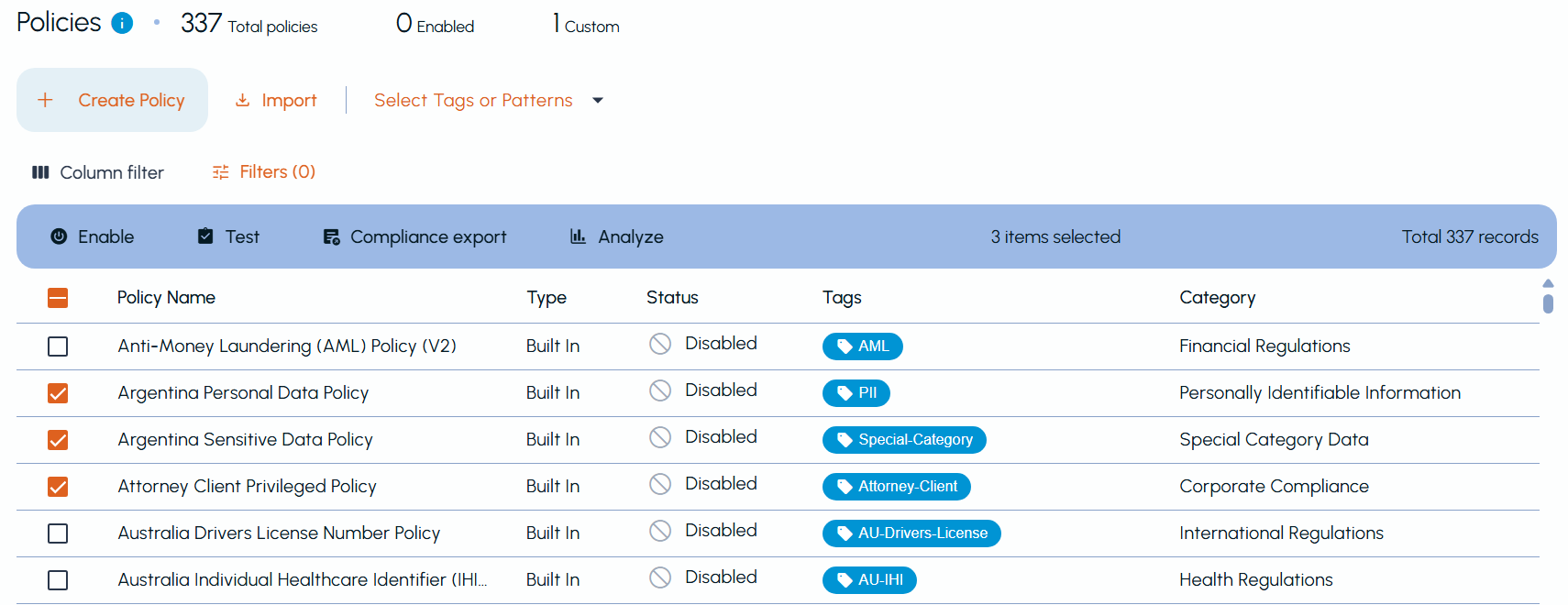
When one or more policies are selected, an action menu appears above the policy list. The action menu lets you perform bulk operations such as:
-
Enable
-
Test
-
Compliance Export
-
Analyze
These operations apply to all selected policies.
Filtering policies
Use Column filter to choose the columns displayed in the policy list.
Use Filters to search and narrow the list based on criteria such as:
-
Name
-
Tag
-
Status
-
Type
-
Category
Related information