
Creating or editing patterns
You cannot edit the built-in patterns, but you can edit any custom patterns that you have created.
To create or edit a pattern
-
At the left of Arctera Classification, click Policies.
-
Click Select Tags or Patterns and select Patterns.
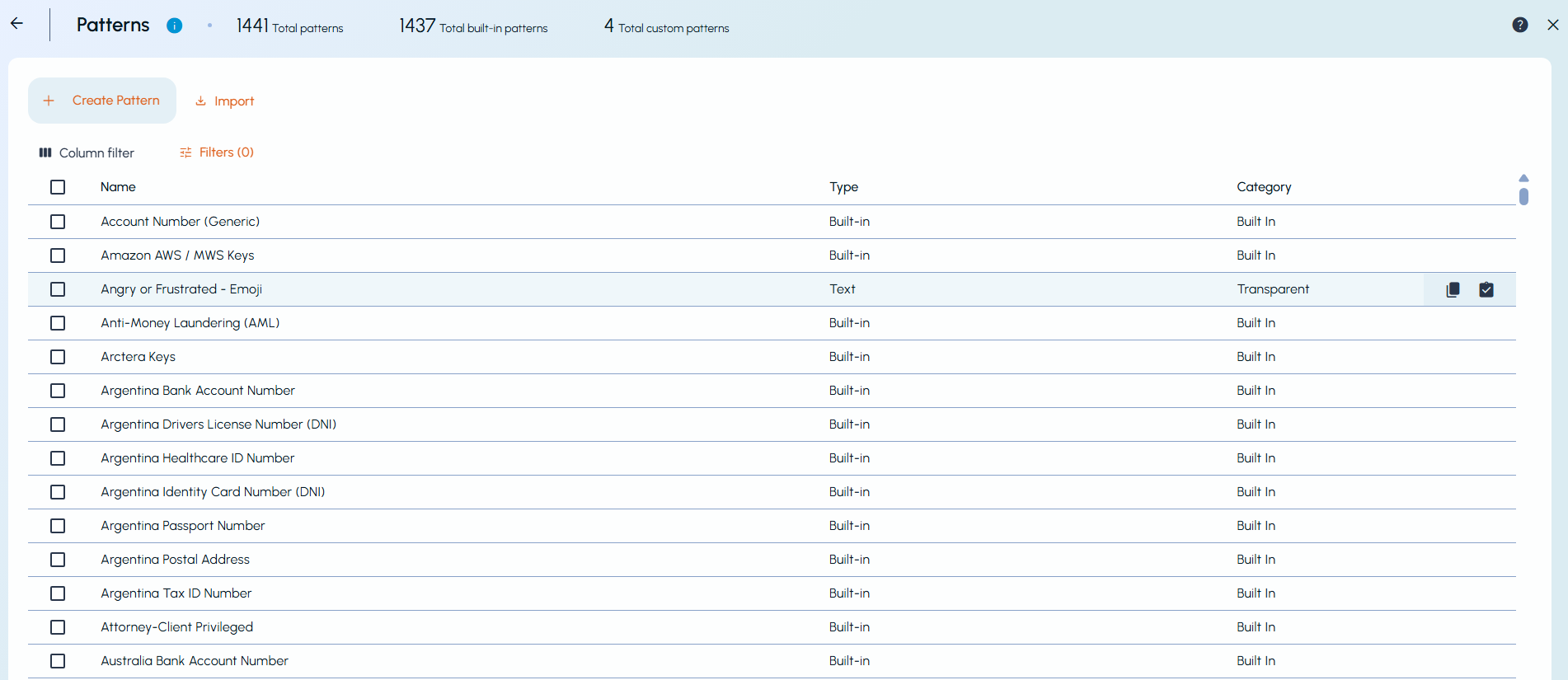
-
Do one of the following:
-
To create a pattern, click Create Pattern.
-
To edit an existing pattern, click the Actions menu (⋮) at the end of the pattern row, and then click Edit.
The following diagram shows the Create Pattern dialog with the pattern type as Regular expression.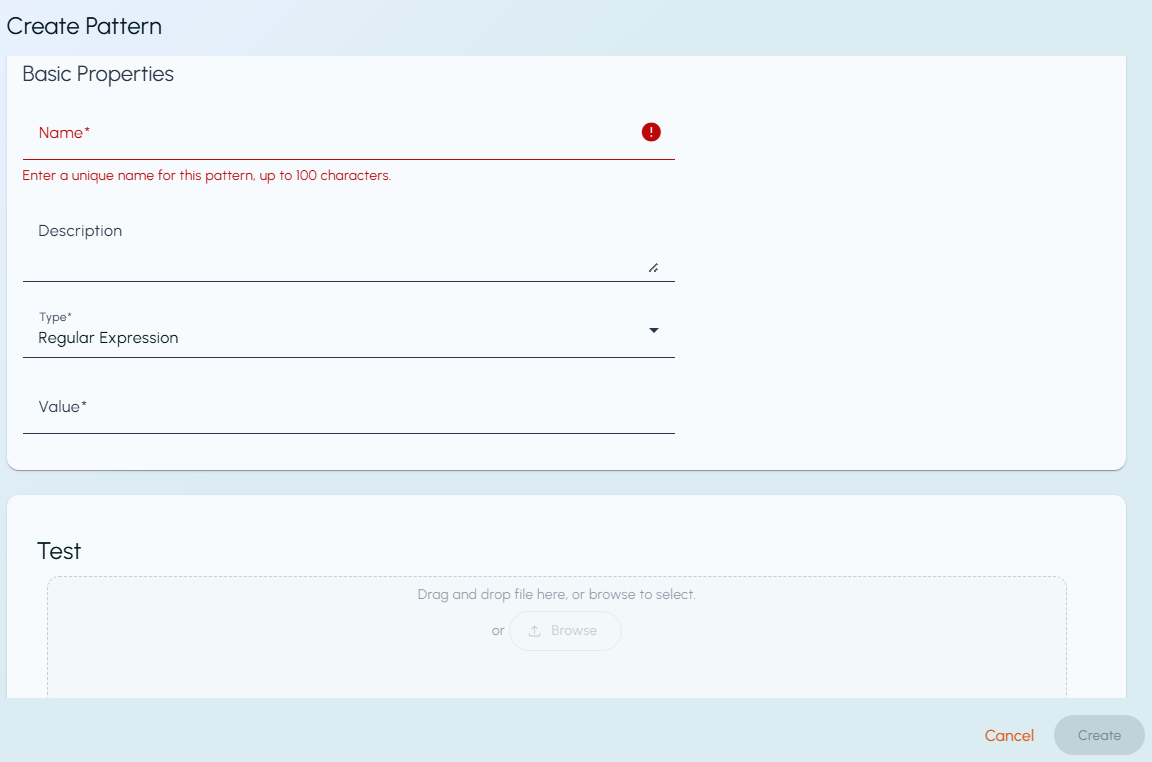 Using Special Standalone Characters in Keyword-Based PatternsWhen creating keyword-based conditions in Patterns, it is important to understand how the application handles special standalone characters like @, #, or $.
-
Special standalone characters are not allowed by default in keyword conditions.
-
If such characters are entered, the system will display a warning message.
-
The pattern can still be saved, but any standalone special characters will be automatically removed in the back-end, unless the String Match option is explicitly selected.
To Retain Special CharactersIf you want to retain standalone special characters in your keyword conditions, you must select the String Match option. This setting ensures that the characters are preserved exactly as entered and bypasses the automatic cleanup process.Scenarios and BehaviorScenarios Behavior Pattern with keyword condition containing special characters Warning message is shown. Special characters will be removed unless String Match is selected. Pattern with keyword condition and String Match selected Warning message is not shown. Special characters are retained. -
-
Set the fields as follows:
Property Description Name Specifies the pattern name. The name must be unique, and it can contain up to 100 alphanumeric, space, and special characters. Description (Optional) Provides a short description of the pattern for display in Arctera Classification. Type Specifies the pattern type. For a Text or Regular expression pattern, you must specify the value for which to look. The same guidelines that you must observe when you enter these values in a policy condition apply when you enter them as a pattern value. See About policy conditions . Choose Similar document to find items that resemble a supplied template. For example, you can find completed forms by submitting the blank form as a template. Unlike Text and Regular expression patterns, you can set the required confidence levels for Similar document patterns when you incorporate them in a policy condition. The document similarity feature can find instances where users have created variants of the template document by adding, removing, or reordering paragraphs, sentences, or words. It can also find instances where users have changed individual words. However, the more extensive these word changes are, the less likely Arctera Classification is to find a match. You must choose the required similarity mode: Full or Section . In Full mode, Arctera Classification compares the template document in its entirety with other documents in their entirety. This mode is useful when looking for instances where users have altered the template document in places without greatly affecting its overall size. In Section mode, Arctera Classification looks for instances where the content of the template document appears as one section within a larger document. To submit the template document, click Browse and then select the required document. -
Test the pattern by clicking Browse and then choosing a document that ought to match it.Select the Perform sentiment analysis checkbox for performing sentiment analysis on the selected item to determine whether the sentiment associated with the item is positive, negative, or neutral.Note: If sentiment analysis fails, the classification process will continue without evaluating the sentiment analysis conditions within the policies. As a result, hits and matches based on the sentiment condition will be affected.After a few moments, Arctera Classification indicates whether it has found a match. When this is the case, you can click Show details to see the matching text and confidence levels.
-
Click Create.
Variable
Variable Support allows you to insert dynamic values into text conditions across policies and patterns using simple placeholders such as
{{variable_name}}. Instead of repeatedly typing the same keywords, you can define it once and reuse it anywhere in your text conditions. A variable is a type of pattern that must be created first and then used in text conditions of policies or patterns. Predefined variables can be inserted directly in the text-based conditions by typing {{ in the text box.
For example: To classify content that contains any reference to Royal Bank of Canada, you can create a variable named BANK_NAME and add values such as RBC, Bank of Canada, and Royal Bank of Canada. This variable can then be used in a text condition by inserting the placeholder
{{BANK_NAME}}. During classification, the system automatically evaluates the content against all defined values of the variable. As a result, any content containing RBC, Bank of Canada, or Royal Bank of Canada will be classified, without the need to create separate conditions for each variation.
To create the basic variable
-
Follow the initial steps for creating a pattern as described earlier.
-
In the Type box, click to select Variable.
-
Define the values as per your requirement. For example, if you want to define a new pattern for identifying Royal Bank of Canada as a bank name, add Bank_Name in the Name field and add a relevant description. In the Value field, add values like RBC, Bank Of Canada, Royal Bank of Canada or the values you want to get a match on.
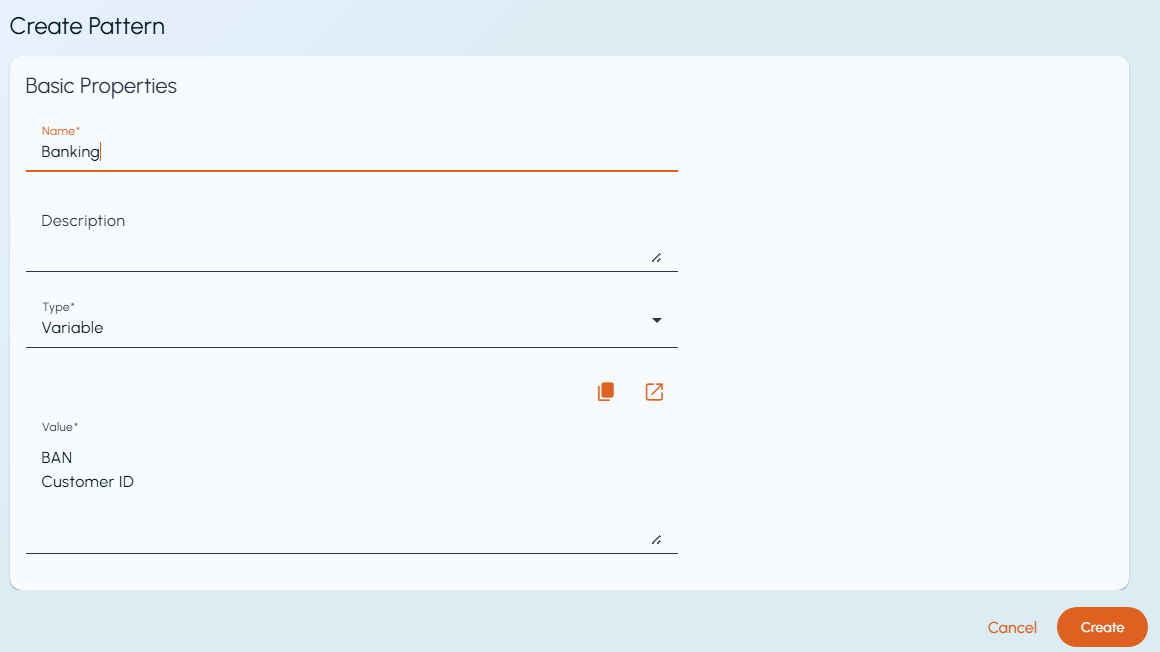
-
Click Create to add this variable.After saving the pattern, the system checks the content during classification and looks for any occurrence of the values you added to the pattern. If the content contains one or more of these values, it is identified as a match and classified accordingly. You can reuse this approach to create additional patterns, such as Department Names, Designations, Agency Names, and more.
To use the created variable in a pattern
-
Follow the initial steps for creating a pattern as described earlier.
-
In the Value box, type
{{and a list of all available variables appears on the page. All the values you have entered while creating the variable will be matched while classifying the content. -
Click Create to add this pattern.
-
In View mode, variables in a text condition appear as links. You can click these links to navigate to the particular pattern.
You can use multiple variables in a condition; however, using a large number of variables may impact classification performance. It is recommended to use only the minimum number of variables required. This flexibility still allows you to define and reuse dynamic values across different text conditions.
Related information