
Quick Actions
Quick Actions brings the operations you perform most often on policies, patterns, and tags into a single place, so you can start a task without navigating to each page first. Selecting an action opens the corresponding workflow, and for actions that apply to a specific item, the system prompts you to choose the item.
To open Quick Actions, select Quick Actions in the left navigation pane.
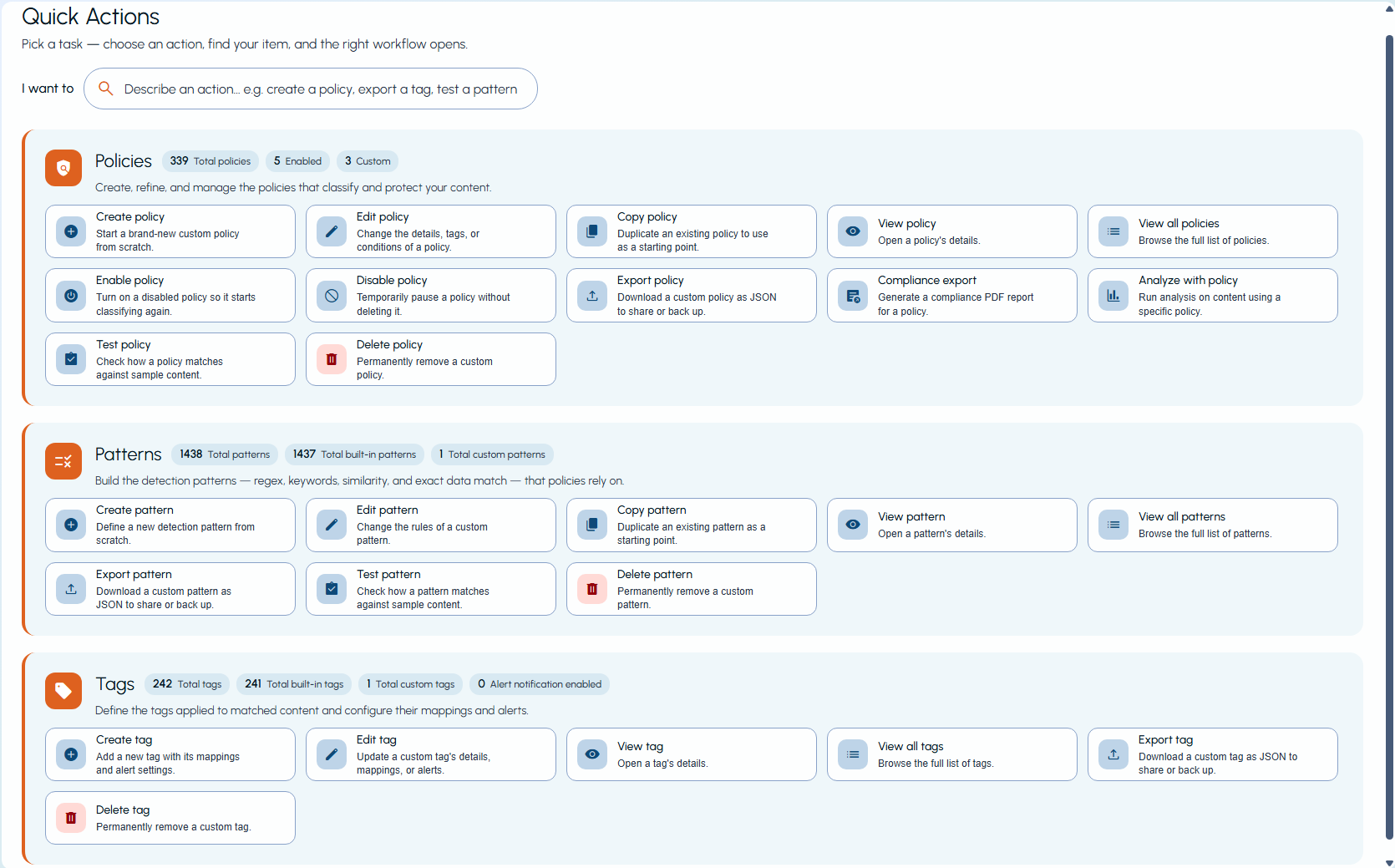
The Quick Actions screen is organized into three sections—Policies, Patterns, and Tags. Each section shows an at-a-glance statistical summary and a set of action tiles.
Related information
Summary
Each section displays live counts that summarize the current state of your environment. The counts refresh automatically after you create, change, or delete an item, and a changed value is briefly highlighted.
| Section | Statistics |
|---|---|
| Policies | Total policies, Enabled, Custom |
| Patterns | Total patterns, Total built-in patterns, Total custom patterns |
| Tags | Total tags, Total built-in tags, Total custom tags, Alert notification enabled |
Note: The Alert notification enabled count for tags appears only when alert notification settings are enabled for your tenant.
Available actions
Each action tile opens the relevant workflow. Actions that apply to an existing item first prompt you to select the item. The available actions differ by section.
Policies
| Action | Description |
|---|---|
| Create policy | Start a new custom policy. |
| Edit policy | Change the details, tags, or conditions of a policy. |
| Copy policy | Duplicate an existing policy to use as a starting point. |
| View policy | Open a policy's details. |
| View all policies | Browse the full list of policies. |
| Enable policy | Turn on a disabled policy so it starts classifying again. |
| Disable policy | Temporarily pause a policy without deleting it. |
| Export policy | Download one or more custom policies as JSON to share or back up. |
| Compliance export | Generate a compliance report for one or more policies. |
| Analyze with policy | Run analysis on content using one or more policies. |
| Test policy | Check how one or more policies match against sample content. |
| Delete policy | Permanently remove a custom policy. |
For detailed steps, see Creating policies, Editing policies, Enabling or disabling policies, Exporting or importing policies, Exporting Compliance Report, Analyzing sample content for policy matches, and Deleting policies.
Patterns
| Action | Description |
|---|---|
| Create pattern | Define a new detection pattern. |
| Edit pattern | Change the rules of a custom pattern. |
| Copy pattern | Duplicate an existing pattern to use as a starting point. |
| View pattern | Open a pattern's details. |
| View all patterns | Browse the full list of patterns. |
| Export pattern | Download a custom pattern as JSON to share or back up. |
| Test pattern | Check how a pattern matches against sample content. |
| Delete pattern | Permanently remove a custom pattern. |
For detailed steps, see Creating or editing patterns, Exporting or importing patterns, and Deleting patterns.
Tags
| Action | Description |
|---|---|
| Create tag | Add a new tag with its mappings and alert settings. |
| Edit tag | Update a custom tag's details, mappings, or alerts. |
| View tag | Open a tag's details. |
| View all tags | Browse the full list of tags. |
| Export tag | Download a custom tag as JSON to share or back up. |
| Delete tag | Permanently remove a custom tag. |
Finding a quick action
If you are not sure which tile you need, use the I want to search box at the top of the screen. Enter a plain-language phrase that describes what you want to do, and Quick Actions shows the matching action tiles under Search results.
The search understands common wording, so phrases such as
create a policy, make a copy of a policy, export a tag, or test a pattern resolve to the correct action. To clear the search and return to the full list of sections, select the clear (✕) icon, remove the text, or press Esc.