Source Configuration
To configure the Viva Engage (Yammer) application:
-
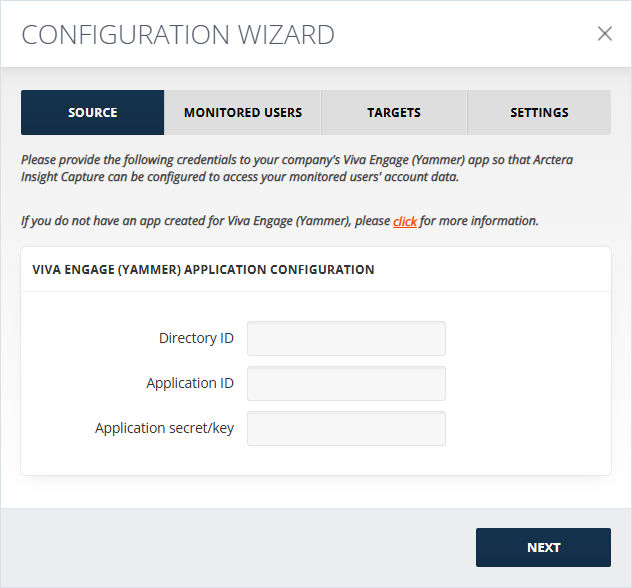
Add the saved Directory (tenant) ID and Application (client) ID in the Directory ID and Application ID fields, respectively.
-
Add the saved client secret value in the Application secret/key field and click Next.
-
A pop-up window will open (ensure that the pop-ups are not disabled in the browser window). Click Accept to let the app access the specified resources for all users in the organization.Note: To authenticate with Arctera Insight Capture, the user must have the Global Administrator role assigned in the Azure Portal. In addition, to use Arctera Insight Capture, the user must be a Yammer Administrator in the Azure Portal and a Verified Admin in the Yammer Admin Portal. Note that these permissions must remain active while being in use by Arctera Insight Capture. Removing or restricting them may cause authentication issues or importer run failures.
To configure the source:
-
For Viva Engage (Yammer) Application configuration, enter Application ID and Application secret/key.
-
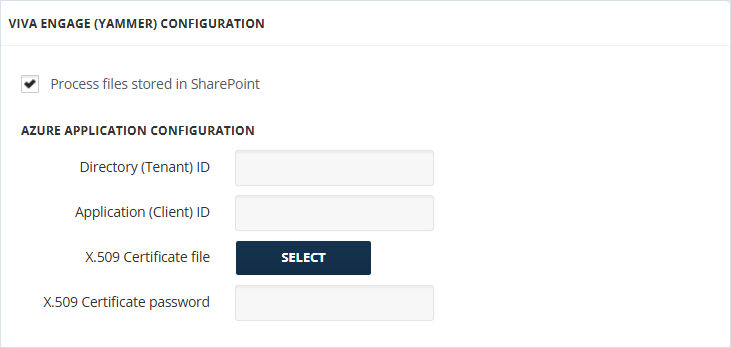
To capture SharePoint files, enable the Process files stored in SharePoint checkbox. The following Azure application credentials are required to capture the content:
-
Directory (Tenant) ID
-
Application (Client) ID
-
-
Select the X.509 Certificate file.
-
Enter the X.509 Certificate password. The Certificate thumbprint field will be auto populated in case the collector was previously configured by uploading a certificate.