
FTP/SFTP Connection
For Connection:
-
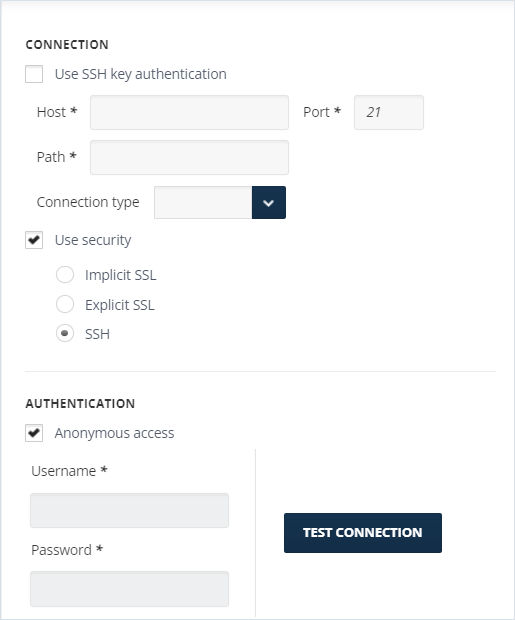
Enter the hostname of the remote FTP server and the folder path provided by the source in the Host and Path fields, respectively. The default FTP port is 21.
-
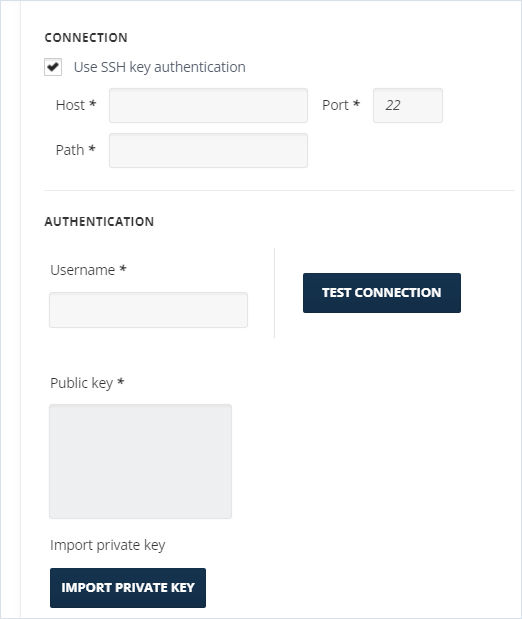
Make sure the connection settings match those of the SFTP server. Enter the Path to the required folder.
-
Enable Use SSH Key Authentication to open the configuration window. SSH Key Authentication is used for connecting to the source SFTP server.
-
For Authentication, enter the Username provided by the source.
-
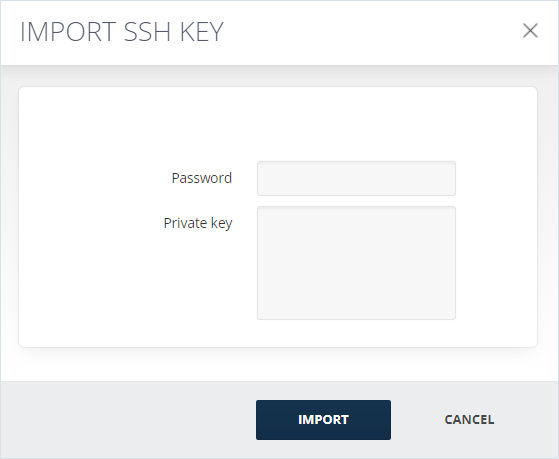
Click the Import Private Key button and Import SSH Key will open.
-
Copy and paste the Private Key.
-
Enter Password.
-
Click Import and the Public Key field will be populated automatically.
-
In case you enable Use Security, select FTP connection type from the Connection Type drop-down list. FTP can run in either passive or active mode. The information about the connection type should be provided by the FTP host. If you wish to use FTP over SSL, enable the Use Security checkbox and choose the connection method Implicit SSL,Explicit SSL or SSH.
-
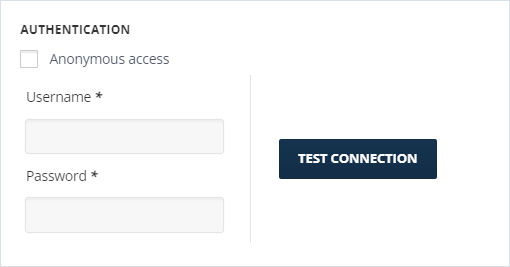
Enter the Username and Password fields provided by the source.
-
Click Test Connection. If the connection is successful, a green check sign is displayed.
-
To enable anonymous FTP connections, enable the Anonymous Access checkbox which is the default settings.
Related information