
EWS Server Target
Insight Capture delivers the data to the Exchange Web Services server you have chosen. The EWS server target can be used to connect to the on-prem and Microsoft Exchange Online servers.
Note: In case of connecting to the Microsoft Exchange Server Online, only Microsoft OAuth is supported.
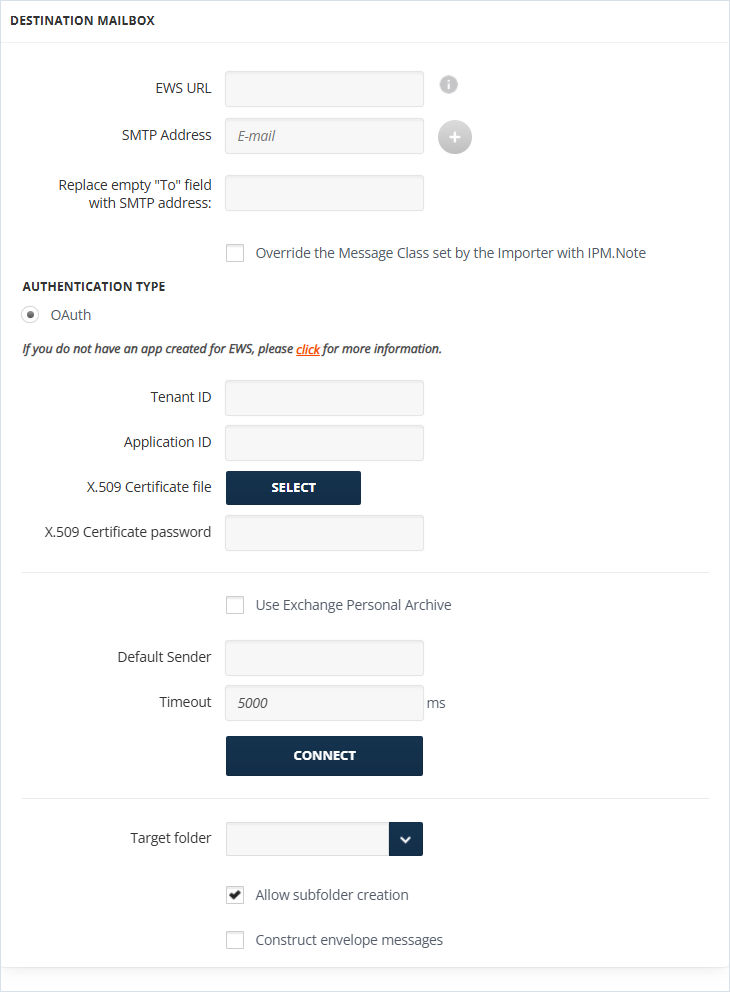
To set up the target:
-
Enter EWS URL.
-
Enter the SMTP address in the relevant field.
-
Click + to add other SMTP addresses and click Connect in Authentication Type. In case the email address is valid, a check icon is displayed. Otherwise, information will be provided about the incorrect address. This feature allows for overcoming size and count limitations by distributing the messages across multiple locations instead of using a single one.
-
Enter an SMTP address for the Replace empty "To" field with SMTP address field.
-
Enable the Override the Message Class set by the Importer with IPM.Note checkbox to ensure items are delivered only with the message class IPM.Note. Leave it unchecked to ensure items are delivered with the message class IPM.Note.\<MessageClass\>.
-
Activate OAuth, provide Application ID, Tenant ID, and Thumbprint in case you select OAuth Authentication type. For step-by-step instructions on how to get Application ID, Tenant ID, and Thumbprint, see Microsoft Entra ID App Creationand Creating a Certificate (Private and Public Keys) accordingly.
-
Specify a Default Sender address for emails with empty FROM fields (EWS rejects such emails).
-
Click Connect, to get the folder list.
-
Specify a Target folder for imported data.
When you have filled in all the fields, click Next.
Note: By checkingUse Exchange Personal Archive, the import of data to the Personal Archive folder of the Target folder will be enabled. Note: By checking theConstruct Envelope Message, the import of data in MS Exchange journal report format (the X-MS-journal-report header is also added) will be enabled.
Related information