
Creating department-specific allowlist rules
To create a department-specific allowlist rule
-
In the left navigation pane, click Departments.
-
Search for and select the department for which you want to add a allowlist rule.Note: Alta Surveillance lists all departments. You can use the filtering options to search the required department. Options include filtering by department name, exception employees, and reviewers associated with the department.
-
Navigate to the Allowlisttab, and then clickNew.
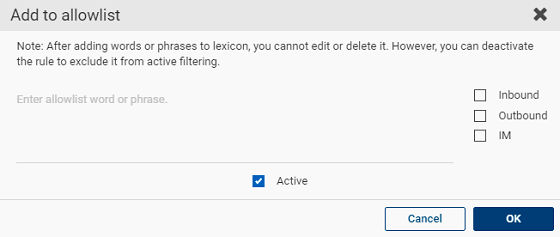
The Add to allowlist dialog box appears.
-
In the Enter allowlist word or phrase field, type a word or phrase.Note: The allowlist rule can contain up to 1024 characters, but a word should not be longer than 50 characters. After adding words or phrases to the lexicon, you cannot edit or delete it. However, you can deactivate the rule to exclude it from active filtering.
-
To create a allowlist rule, select any or all of the following options:
-
Select the Inbound check box to apply this allowlist rule to all inbound items.
-
Select the Outbound check box to apply this allowlist rule to all outbound items.
-
Select the IM check box to apply this allowlist rule to all instant messages.Note: Clear the respective check boxes if you do not want to apply rule to Inbound, Outbound, or Instant Messages.
-
-
Select the Active check box to activate the rule.
-
Click OK.
Related information