
Searching departments
Upon accessing the Department page, a list of all the available departments appears.
To quickly search a required department
-
In the left navigation pane, click Departments.
-
Expand the Departmentssection if it is not expanded by default, and click theApply filter icon to view the filtering options.Note: Alta Surveillance lists all departments. Use the provided filtering options to search the required department. Options include filtering by department name, exception employees, and reviewers associated with the department. A closed department will only be visible if any of its child department is open.
-
Perform the following steps as required:
-
In the Search by name field, type name of a department or department owner containing items you want to search.
-
Click Show extra filtering options to see the following filters:
-
Select All to search a department within all departments.
-
Select Unreviewed/Unsupervised to search a department where no department reviewer or compliance supervisor is assigned.
-
Select Show Exceptions to search for exception employees. Type a name of exception employee.
-
Select Show Reviewers to search for the specific reviewers. Type a name of a reviewer.
-
Click the Apply Filters icon to apply the search criterion.
The application displays a summary of your search result.
-
Alternatively, select the All Departmentsnode to obtain a summary of all the available departments. To view the departments based on their closedoropen status, expand the filter section and choose the respective option from theDepartment Status drop-down list as shown in the sample image below:
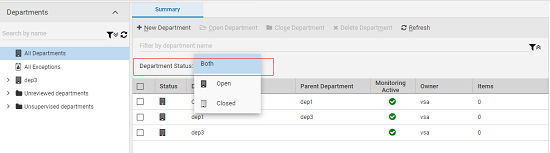
The application displays the summary of departments based on their status.
Related information