
Understanding the Departments page
The following images highlight the standard features of the Departments page.
Figure: A sample page showing summary of departments
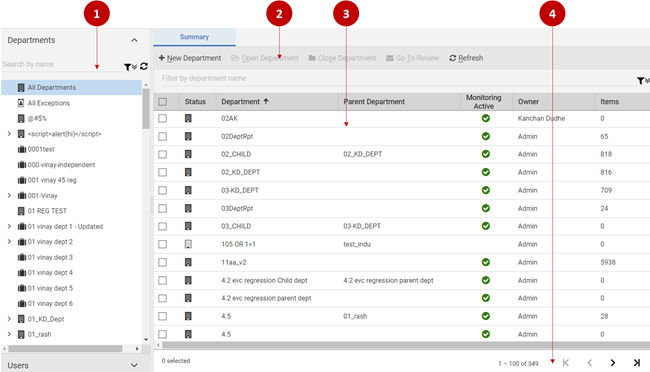
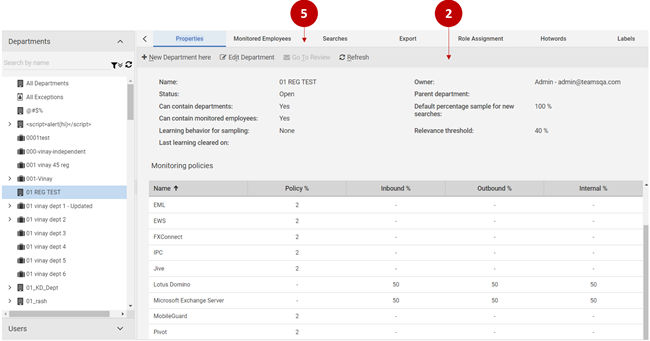
Figure: A sample page after selecting a single department
1\. Search and filter pane
Alta Surveillance lists all the available departments. After you create a search, the application searches for the items based on the search criteria. You can use the filters to narrow down the search results. You can use the filtering options to search the required department. Options include filtering by department name, exception employees, and reviewers associated with the department.
You can select a single or multiple departments just by selecting the corresponding check boxes. You can select the departments from multiple pages. For better performance, it is recommended to select maximum 200 records. To clear the entire selection, click the Clear icon on the bottom pagination pane.
2\. Action bar
Functions of the action bar vary with the menus you have selected. The available action buttons are mentioned below.
Related information
Table: Department view action buttons and their function
| Action button | Function |
|---|---|
| New Department | Opens a New Department page to create a new department. |
| New Department here | |
| Open Department | Opens a closed department for monitoring . |
| Close Department | Closes an open department and restricts monitoring of employees in the department. |
| Delete Department | Deletes the selected departments. |
| Go to Review | Navigates you to the Review tab of the current department. |
| Refresh | Refreshes the page information. |
| Filter by department name | Lets you type a few letters of a department name you want to search. |
3\. Details pane
This pane displays the records with subsequent details. You can click on the column heading to sort the data either in ascending or descending order for one or more columns on the selected page. The sorting is case insensitive. After performing a sort action, users land on the first page, by default.
You can change the size and order of the columns on this pane. This change persists till the time you are signed in. After you log out from the application, the default column size and the order is retained.
4\. Bottom navigation bar
This bar displays total number of records, total number of records on page, and total number of the selected records if you have selected these records. The navigation options are supported for multi-page lists.
-
Click the Clear icon to clear the selection of records in the table.
-
Click the |< icon to go to the first page of the list.
-
Click the >| icon to go to the last page of the list.
-
Click the < icon to go to the previous page of the list.
-
Click the > icon to go to the next page of the list.
5\. Menu bar
The Title bar appears directly underneath the upper banner. The left side of the title bar always displays the name of the current page. This bar also displays menus based on the permissions you have to work within departments.
Table: Department view menu bar tabs and their function
| Menu | Function |
|---|---|
| Properties | Displays department-level properties. You must have the Configure Department Properties permission in a department to edit its properties. Users with the User Admin role have this permission by default. |
| You can filter the departments by name and choose whether to list any exception employees and reviewers that are associated with them. | |
| Using the Properties tab, you can perform the following: | |
| - rename a department | |
| - change monitoring policy | |
| - close and reopen the department | |
| - nominate a new owner | |
| Note: Even if you nominate a new owner, the original owner still retains all the administrative permissions. You can use theRole Assignmentfeature to remove these permissions. | |
| Monitored Employees | Allows you to manage the configuration activities for department-specific searches. |
| Searches | Allows you to manage the configuration activities for department-specific searches. |
| Export | Allows you to manage the export activities for department-specific data. |
| Role Assignments | Allows you to manage department-specific roles and responsibilities. |
| Hotwords | Allows you to manage department-specific hotwords and hotword sets. |
| Labels | Allows you to manage department-specific labels. |
| Review Comments | Allows you to manage department-specific review comments. |
| Trash | Allows you to manage department-specific trash rules. |
| Allowlist | Allows you to manage department-specific allowlist rules. |
| History | Displays start and end dates for employees added to the department. |