
Removing exception reviewers
You can remove the role of exception reviewer from employees when they do not need to perform the role anymore. Note that if an exception has one reviewer only, you cannot remove the reviewer while the exception is still active. Remove the exception status from the employee before you remove the reviewer.
Note: You must have theManage Exceptionspermission in the department to remove exception reviewers. By default, users that have theCompliance Supervisor,Rule Admin, orUser Adminroles have this permission.
To remove an exception reviewer
-
In the left navigation pane, click Departments.
-
Search for and select the department.Note: Alta Surveillance lists all departments. You can use the filtering options to search the required department. Options include filtering by department name, exception employees, and reviewers associated with the department.
-
In the Monitored Employees tab, select only one exception employee at a time.
A list appears, showing all monitored employees along with their configured and enabled content sources as shown in the sample image below.
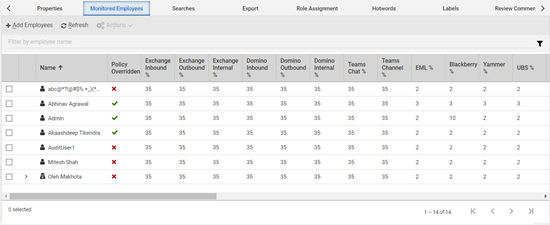
To search for employees by name, in the Filter by Employee Name field, enter keywords that characterize employee names or construct a query. Press ENTER or click the filter icon to view the filtered names. Avoid using wildcard characters (asterisk or question mark) for partial searching, as they do not yield results.
-
Select only exception employees to which additional exception reviewers are assigned.
-
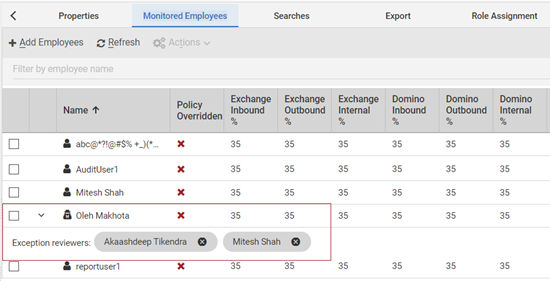
To view the associated exception reviewers, click Expand icon adjacent to the reviewer name.
The application displays a list of all exception reviewers.
-
Click the X (Remove ) icon to remove the associated exception reviewers.
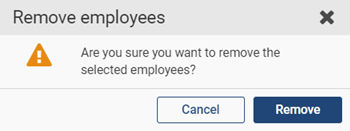
The application prompts you to confirm that you want to perform the operation.
-
Click Remove.
Related information