
Understanding the Dashboard page
After logging in to Alta Surveillance, your dashboard appears by default. If not, you can view it by clicking the Dashboard tab. The dashboard page lets you view the status of department reviews, escalations, and tasks. Aggregated statistics are used to report the status of these items.
Figure: An example of the dashboard that appears to administrators and reviewers upon login
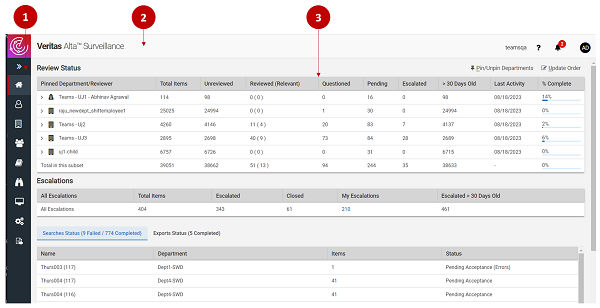
1\. Left navigation pane
The left pane provides a navigational menu. When you click on an item in this menu, the corresponding view appears in the right pane. The availability of these menu items and the corresponding views depend on the roles that are assigned to the signed-in user. Therefore, if you are a reviewer, some of these tabs may not be visible, depending on the permissions that your administrator has assigned to you.
You can click the >> icon to expand and the << icon to collapse the navigation banner.
| Icon | Tab | Description |
|---|---|---|
|
Dashboard | This tab provides an overview of the status of the activities that you can perform in Alta Surveillance. It also gives you quick access to the activities that you are likely to perform frequently with Alta Surveillance. |
 |
Review | This tab displays a list of review items. A reviewer can provide comments for them and assign actions like review irrelevant or relevant, pending, question, escalate, and appraise. |
 |
Departments | This tab lets you manage departments, the monitored employees who belong to them, and users (reviewers) assigned to them. |
 |
Employee Groups | This tab lets you manage employee groups that belongs to departments. |
 |
Reports | This tab lets you generate reports about review status for Bloomberg, Domino, Exchange, SMTP, Instant Messaging (IM), Microsoft Teams Chat and Microsoft Teams Channel. |
 |
Monitor | This tab lets you monitor and resubmit searches as necessary. |
 |
Application | This tab lets you access commonly used administrative facilities. You can manage the following\: |
| - Roles - Set up and amend the roles you can assign to users to manage their access to Alta Surveillance. | ||
| - Role Assignment - Assign Alta Surveillance roles to users. | ||
| - Hotwords - Set up lists of important words that you may want to search within archived items. | ||
 |
Configuration | This tab lets you\: |
| - Create schedules at which searches can run across multiple departments. | ||
| - Manage audit settings for the Audit viewer. | ||
| - Configure reporting API endpoints that can be used to generate reports and perform data analytics through custom scripts or templates. | ||
 |
Audit viewer | This tab lets you search and save audit records for various modules and operations at department and application level. |
2\. Banner
The banner contains the Alta Surveillance logo, company name, user name of the administrator or reviewer who is signed in, the Help icon, the Notifications icon, and the Account Profile icon.
-
Click the Help icon to display application help in a separate window, without leaving the application window.
-
Click the Notification icon to view the most recent updates in the application. Notifications and their summaries are displayed. Click notification titles for corresponding details in user help.
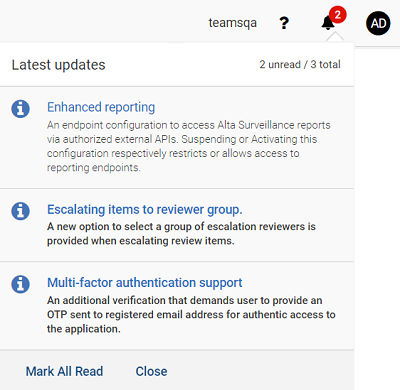
Click Mark All Read to mark them all as read. Click Close to exit the notifications panel.
-
Click the Account Profile icon to open the Veritas Alta eDiscovery, Veritas Alta View Compliance and Governance console, and Veritas Alta Personal Archive applications in new windows if you are authorized to access these applications.
-
Click Log Out to exit the application.
3\. Details pane
The details pane displays summary of the following sections:
-
Review Status: Provides details of up to five or less pinned departments. If user has not pinned any department, then it presents details of the five departments to which that user has access.
-
Escalations: Provides details of escalated items.
-
Searches and Export Status: Displays results of the last few exports and searches run by a user.
Related information