
Viewing dynamic review item counts on the calendar
The calendar shows the review item count in the day, month, or year view. The count dynamically updates based on the applied filters.
| Day view | Month view |
|---|---|
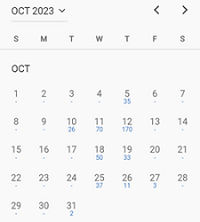 |
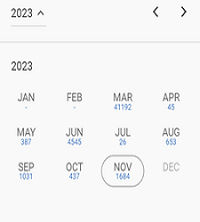 |
| Year view | - |
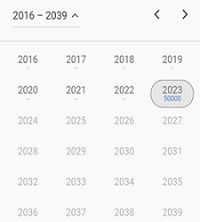 |
- |
The dynamic review item count is visible on calendar when you specify the date range through the Capture DateandDate filter options. The item count appears only if at least one filter is applied to populate the Review Set with items for review. The calendar can display a maximum of 50,000 review items, aligning with the Review Set's maximum limit of 50,000 items as shown in the image below.
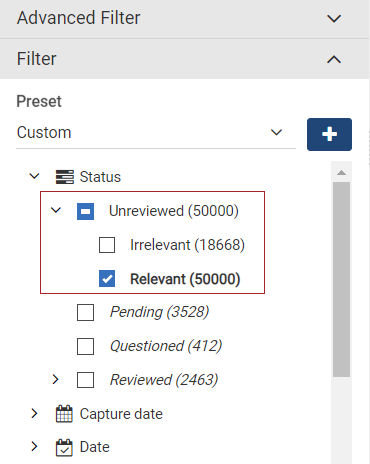
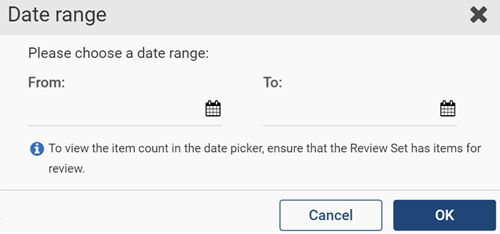
The calendar does not show item counts when filters are not applied, instead displays the following message as shown in the image below.
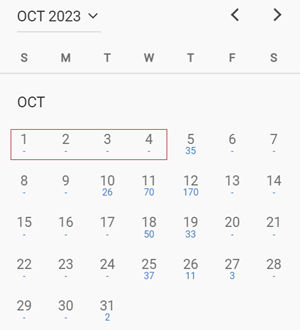
The calendar shows a hyphen (-) sign instead of item count (as shown in the image below) if the filters are applied, but there are no items for review.
To view the review item counts on calendar
-
In the left navigation pane, click Review.
-
In the Department drop-down list, select the department or a nested department for which you want to display the items in the review set.
-
In the Filterdrop-down list, set the filter criteria by using the provided filter options, and clickApply.Note: Apply at least one filter; otherwise, the item count will not appear, as there will be no review items in the review set.
-
In the Filterdrop-down list, expand theCapture dateorDateoption, and clickSet date range.
In the Date range dialog box, click the calender icons to set the start and end date.
Clicking the calendar icon displays the item count. When you select a day, month or year view, the application displays day-wise, month-wise, and year-wise item counts beneath the respective dates, months, and years. If there is no items count, a hyphen (-) is displayed.
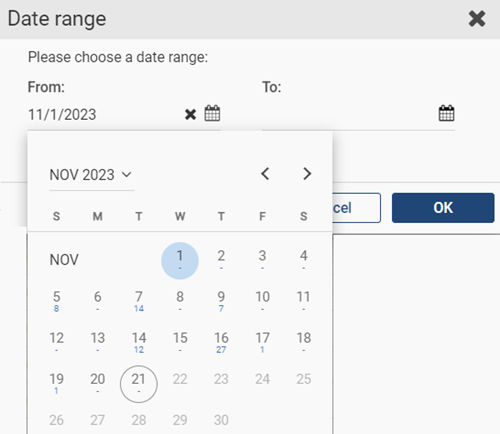
After specifying the date range, click OK.
-
Click Apply to filter the items based on the specified filter options.
Related information