
Creating department-specific trash rules
To create a department-specific trash rule
-
In the left navigation pane, click Departments.
-
Search for and select the department for which you want to add a trash rule.Note: Alta Surveillance lists all departments. You can use the filtering options to search the required department. Options include filtering by department name, exception employees, and reviewers associated with the department.
-
Navigate to the Trashtab, and then clickNew.
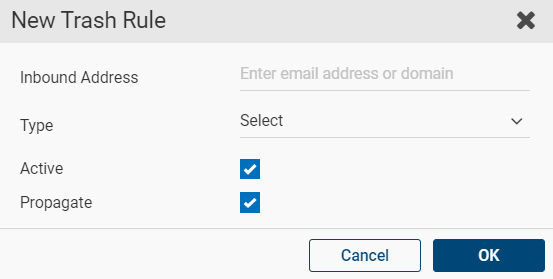
The New Trash Rule dialog box appears.
-
In the Inbound Address filed, type an email address or domain.Note: When you specify a domain, do not add the@symbol.
-
In the Type field, select a Domain or an Email Address.
-
Select the Status check box to activate the rule.
Do not select the check box if you want to keep the rule in the deactivated state.
-
Select the Propagate check box to ensure the sub-departments inherit the rule.
Do not select the check box if you do not want to propagate rule to sub-departments.
-
Click OK.
Related information