
Adding or removing text for machine learning
To review items and add or remove text for machine learning
-
In the left navigation pane, click Review.
-
Search for and select the department of which you want to review items.Note: Alta Surveillance lists all departments. You can use the filtering options to search the required department. Options include filtering by department name, exception employees, and reviewers associated with the department.
-
(Optional) To reset the filtering criteria, click Clear , and set a new criterion.
-
Click Apply.
-
To review the searched and filtered emails, select the item to view its details in the reading pane.
The application displays email details and content in the Preview pane.
-
On the Previewtab of the reading pane, ensure that theLearning action bar is displayed.
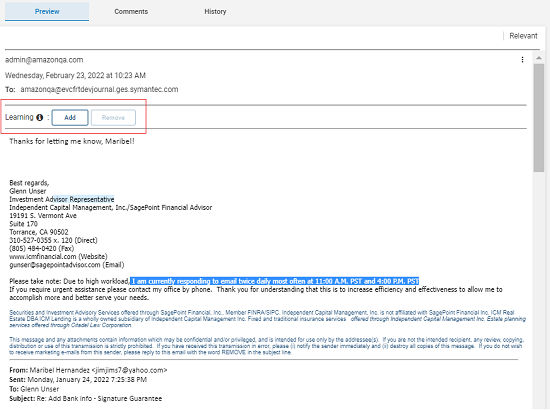
Learning action bar lets you select the text samples for the intelligent review process. You can add or remove the selected text samples from the item being reviewed.
-
To add text to machine learning algorithm, select the text from review item content or from attachments (if any), and click Add.
-
To remove text for machine learning algorithm, click on the previously added text from the review item content or from attachments (if any), and click Remove.Note: You can select up to 3000 characters in a single selection block from review item content or each attachment. Intelligent Review feature uses this data for identifying, categorizing, and quickly delivering items to reviewers. Note: The add or remove text for the machine learning feature is not available for Microsoft Teams chat and channel messages and the associated attachments.
Related information