
Viewing AI Analytics of Cases
You can view AI analytics for a case only if the case is AI-enabled.
To view AI analytics of a case:
-
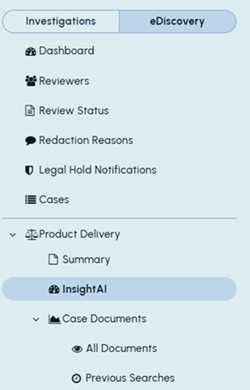
On the eDiscovery tab, search for and select the required case. The case-specific nodes appear in the left navigation pane.
-
Select the InsightAI node to view InsightAI Dashboard. The dashboard displays case-level metrics as follow:
-
AI analytics summary: Displays the number of emails scanned, topics mined, emails identified as noise, and AI units consumed for the selected case.

-
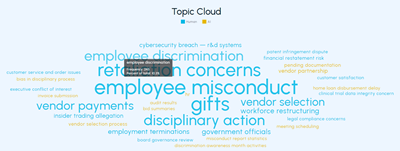
Topic cloud: Displays a visual representation of the human-defined topics and AI-extracted topics identified in the case. The human-defined topics appear in blue color, and the AI-extracted topics appear in yellow color.
-
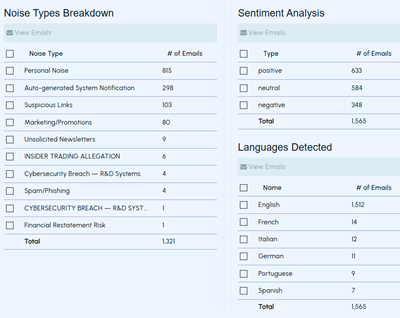
AI analytics tables: Display case-level breakdowns of the extracted information, including the number of emails by noise type, sentiment, and language.
-
-
Review analytics available on single-click:
-
Hover over the topic to know its relative frequency or prominence.
-
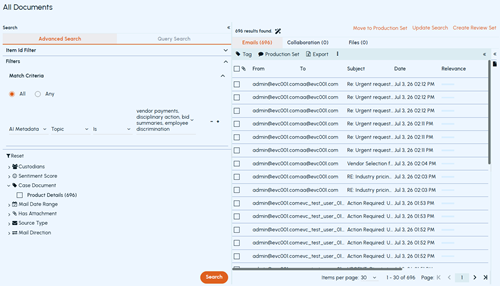
Single-click the topic to enable the View Emails option.
-
Click View Emails to view emails associated with the selected topic to view all emails.
-
-
Review analytics available on double-click:
-
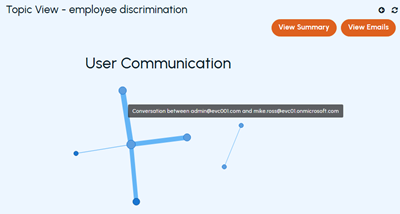
Double-click the topic to display a visual representation of the User Communication.
-
Hover over a spike to view communication details between the sender and recipient.
-
Click View Emails to view emails associated with the selected spike. Each spike represents the communication between specific email senders and receivers.
-
Click View Summary to view an AI-generated summary of the email content associated with the selected topic.
-
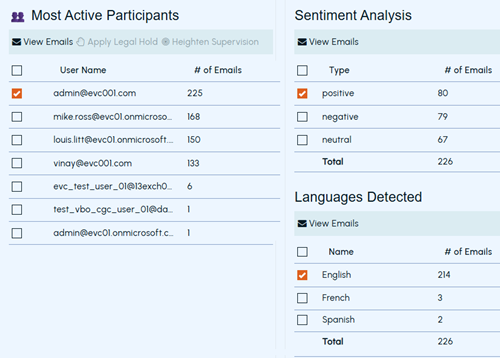
Review information in the following tables:
-
Most Active Participants: Displays the users who exchanged the highest number of emails in the selected topic, along with the number of emails associated with each user.
-
Sentiment Analysis: Displays the number of emails identified for various sentiments for the selected topic, along with the total number of emails.
-
Languages Detected: Displays the number of emails identified in each language for the selected topic, along with the total number of emails.
-
-
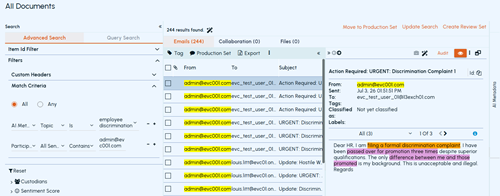
Select the required entry in an analytics table, and then click View Emails in that table to view the associated emails.Note: The Apply Legal Hold and Heighten Supervision options appear on the table but are not functional in this release.The email preview supports hithighlighting of relevant content in the preview pane.
-
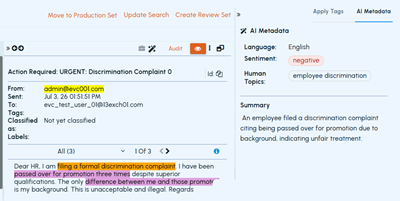
Click the AI Metadata pane on the right side of the email preview to view sentiment analysis information.
After reviewing the required AI analytics, you can use the available insights to identify relevant topics, communication patterns, participants, sentiments, languages, and associated emails for further case review. -
Related information