
Managing Arctera Capture collectors from Arctera eDiscovery
To manage Arctera Capture collectors from Arctera eDiscovery:
-
On the Investigations tab, select Targeted Collection.A list of existing collection names are displayed.
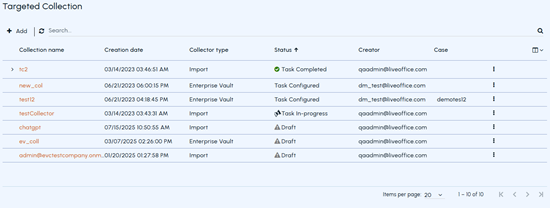
-
Search for a collector on which you want to perform a required action.
-
Perform the following actions, as needed:
-
To start a collector:
Make sure the collection status is shown as Stopped. Click the More actions icon, and then click Start.The collection status updates to Task In-progress.Note: The Start option appears only when the collector is in the Stopped state.-
To stop a collector:
Make sure the collection status is shown as Task In-progress. Click the More actions icon, and then click Stop.The collection status updates to Stopped.-
To restart a collector:
Make sure the Collection Defensibility Report is showing Failed or Rejected items. Click the More actions icon, and then click Restart.The restart operation begins the collection process from the start and the collection status gets updated to Task In-progress.Note: The Restart option appears only when the Collection Defensibility Report shows Failed or Rejected items. Otherwise, this option remains unavailable in the More actions menu.-
To hide a collector:
Click the More options icon in the corresponding row, and then click Hide.Note: Hidden collectors remain in the system and reappear in the table when you select Show Hidden.-
To view hidden collectors:
Click the Select columns to show or hide icon displayed in the top-right corner of the table, click the Show Hidden check box, and then click Apply.-
To unhide (show) a collector:
Click the Select columns to show or hide icon displayed in the top-right corner of the table, click the Show Hidden check box, and then click Apply. Locate the collector you want to unhide (show) in the main table again. Click the More actions icon, and then click Show. -
Related information