
Exporting a search summary report for collaboration messages
To export a search summary report for messages during case review:
-
On the eDiscovery tab, click Cases.
-
Search for and select the case in which you want to search emails.
-
The selected Case_Name node appears below Cases.
-
Click New Search to create a new search. Else, expand Research Sets or Review Sets to select existing search.You can access existing saved searches of the selected case from the Review Set and Research Set nodes. Alternatively, you can click New Search, specify a new criteria in the Advanced Search or the Query Search option to search for new emails for review.
-
If you select the search from Research Sets, the application do not show the Review Status option on the action bar.
-
If you select a search from Review Sets, choose any filter option, and click Apply, the Export Report button remains disabled.After performing a new search or accessing the existing searches from review set and research sets, the application displays the filtered emails, collaboration messages, and files in the details pane.
-
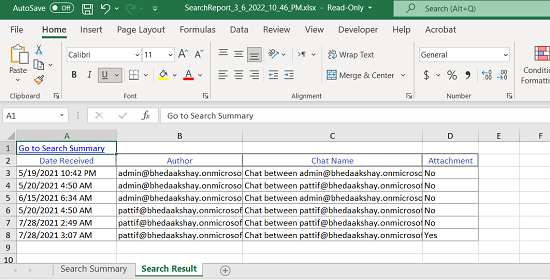
On the Collaboration tab, click the Ellipsis icon (more actions) and click Export Report.The application downloads the summary report (.xlsx) of the emails within search as a zipped (.zip) folder. A sample report is shown below. The report comprises of two sheets.
Related information
Note
-
Search Summary: This sheet displays details such as Search Parameters and Custodians.
-
Search Result: This sheet displays details such as Date Received, Author, Chat Names (list of people involved in chat), and Attachments.
-
The Chat Name column displays the email addresses of message recipients involved in a chat. This column supports up to 100 characters; any text beyond this limit is truncated in the exported report.