
Exporting a search summary report for emails
To export a search summary report for emails:
-
On the Investigation tab, select the search for which you want to export a summary report.
-
Click New Search to create a new search. Else, expand On-going Searches or Standard Searches to select existing search.
-
On the Emails tab, click the More Actions icon, and click Export Report.The application downloads the summary report (.xlsx) of the emails within the search as a zipped (.zip) folder. A sample report is shown below. The report comprises of two sheets.
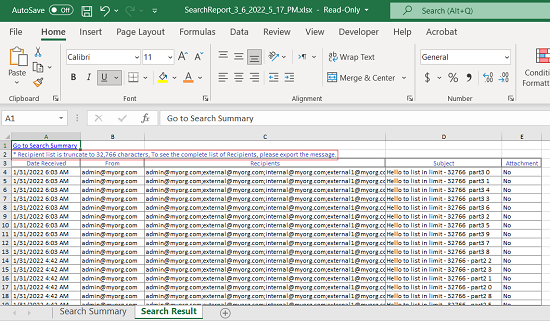 Note: TheSearch Summarysheet displays details such as Search Parameters and Custodians. TheSearch Resultsheet displays details such as Date Received, From, Recipients, Subject, and Attachments. The recipient column in this summary report includes recipients mentioned in the To, CC, and BCC fields. If the list of recipients is longer than 32766 characters, the application truncates the list. The report displays a note that -Recipient list is truncate to 32,766 characters, To see the complete list of Recipients, please export the message.In such scenario, to view the complete list of recipients, you need to export the individual message.
Related information