
Viewing audit log and history of AI enabled cases
You can use the audit log to review changes made to AI features for the selected case and export the results for further analysis or record keeping.
To view the audit log and history of AI-enabled cases:
-
In the left navigation pane, on the eDiscovery tab, select Cases.A list of available cases appears.
-
Search for and select the AI-enabled case.The case-specific nodes appear in the left navigation pane.
-
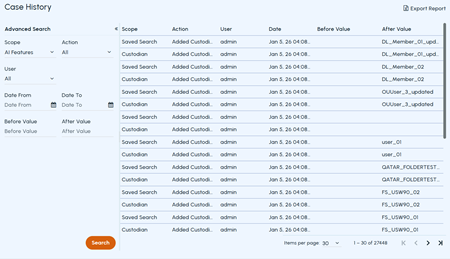
Select the Case History node.
-
Under Advanced Search, specify the following criteria:
Field Description Scope Select AI Features. Action Select All or a specific action. The currently available actions are:- Added Topics- Changed AI Features Status- Changed Language Detection Status- Changed Sentiment Analysis Status- Changed Noise Detection Status- Changed Topic Mining Status- Included Emails as Content Source User Select All or a specific user. Date From/To Specify the period for which you want to view the case history. Before Value/After Value Enter the value. -
Click Search to view the audit log.
-
Click Export Report to download the audit log report.
Related information