
Applying a search-level legal hold
Accounts with the appropriate permissions can place items from a search on legal hold. Applying a search-level hold ensures that specific items remain on hold even if a case-level legal hold is removed.
You can apply a search-level legal hold to Research or Review sets.
To apply a search-level legal hold:
-
On the eDiscovery tab, select Cases to view a list of cases.
-
Search for and select the required case from the list of cases.
-
Under the Cases node, in the left pane, a***case_name*** node appears for the selected case.
-
Select the case_name>Research Sets or Review Sets
-
Select the required search under the Research Sets or the Review Sets node or the node.The search displays its results.
-
In the top-right corner, click Apply Search Legal Hold.
Related information
Note
-
The default limit for applying search-level legal hold in a search result is 1000000 items, including emails, collaboration messages, and files. For any technical support, contact Arctera Support via your system administrator.
-
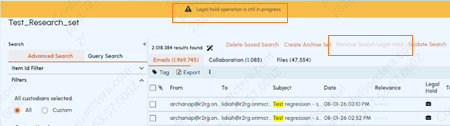
The application displays a notification indicating that applying search-level legal hold is in progress and may take some time to complete.
-
To remove a legal hold after it has been applied, select the same search, and click Remove Search Legal Hold. However, if the applying search-level legal hold operation is in progress, the Remove Search Legal Hold option remains disable as shown in the sample image above.