
Exporting collaboration messages
You can export a batch of collaboration messages and share it with the concerned authority for the intended use. To secure the information, you can use the AES-256 encryption while creating a batch of collaboration messages for export. After exporting the batch of messages, you can download and share it with others.
To export a batch of collaboration messages:
-
On the Investigations tab, create a new search or select the searches from the On-going searches or Standard searches node.
-
Perform either an Advanced Search or a Query Search to search for the Collaboration messages. See Searching collaboration messages during investigation.The application displays result.
-
On the Collaboration tab, select the check box for one or more messages (conversations) to which you want to apply labels, and click Export. Do any of the following:
-
Click Export selected messages to export only the selected messages.
-
Click Export all messages to export all the available collaboration messages within the search.
In both the scenarios, the Export Options dialog box appears with the following fields: -
| Message Format | Select the appropriate message format for batch export. Options include\: |
|---|---|
| - JSON Note: This format is selected by default. When you select JSON format for export, files are downloaded in their original form, and not as JSON. | |
| - EDRM Only | |
| Enable AES-256 Encryption | Select this check-box if you want to secure the access of the downloaded export batch. |
| Export Name | Provide the name for the batch you want to export. By default, it takes the Search Name. You can change it if required. |
| Export Password | Enter the password that you want end user to provide when they access this exported batch of messages. |
| Confirm Password | Repeat the same password for confirmation. |
| Generate Azure SAS URL | Note: Users can see this button only if the Export to Azure private storage location feature in the Arctera Management Console is enabled for them. Users can export items to their private Azure Blob storage location. |
| Click Generate Azure SAS URL to get the Azure Blob SAS URL to access the location and save it for future use. | |
| For security reasons, the application does not show this URL the next time. However, if the SAS URL is misplaced for any reason, click Generate Azure SAS URL again to generate a new SAS URL and save it securely. | |
| After you click Export on the Export Options dialog box, all the selected items are exported to the Azure private storage location. You can use Microsoft Storage Explorer to access the exported items. | |
| Share Export | Click Select Admin to choose the recipients of this batch export and click Update. |
| Note: You need to manually share the Export Password with the administrators and follow all the security specific rules of the organization. |
-
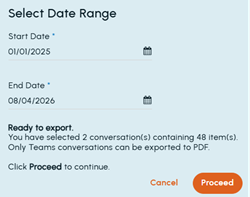
Click Print selected conversations to print the selected conversations. A**Select Date Range **dialog box appears. Specify the **Start Date **and End Date to retrieve conversations within the selected date range.
 Note:
Note:-
The Print selected conversations option is visible only when at least one Microsoft Teams collector is configured and applies only to Microsoft Teams conversations.
-
If conversations are not available for the selected date range, the Proceed option remains disabled. Modify the date range to retrieve conversations, and then click Proceed.
In this scenarios, the Export Options dialog box appears with the following fields: -
| Message Format | Select the appropriate message format for batch export. |
|---|---|
| Currently, PDF is the default and only available format for batch export. | |
| Enable AES-256 Encryption | Select this check-box if you want to secure the access of the downloaded export batch. |
| Export Name | Provide the name for the batch you want to export. By default, it takes the Search Name. You can change it if required. |
| Export Password | Enter the password that you want end user to provide when they access this exported batch of messages. |
| Confirm Password | Repeat the same password for confirmation. |
| Share Export | Click Select Admin to choose the recipients of this batch export and click Update. |
| Note: You need to manually share the Export Password with the administrators and follow all the security specific rules of the organization. |
-
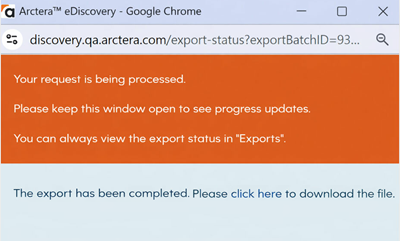
Click Export.Note: The exported batch can either gets downloaded as a single or multiple file segments.
-
Click Click here to download the exported batch of messages.
-
To confirm the status of batch export, on the Investigations tab, select Exports and check the status of your export.
Related information