
Adding parent tags and their child tags
Adding case tags to individual cases helps you categorize, organize, and analyze them during the review process. You can customize new parent and child tags.
Under the parent tag, you can add a maximum of 10 child tags up to three levels in the hierarchy. Adding tags with same names under different parent is permitted. However, you cannot save a new tag with a duplicate name in the same window; you must save other identical tags individually first.
To add new parent tags and their child tags:
-
On the eDiscovery tab, click Cases.
-
Click Add Case.
-
In the Add New Case dialog box, under Case Tags, specify the following:
None By default, the None option is selected during creating a case, indicating no tag applied to the case. Select this option if you do not want to add parent and child tags to the case. Custom Select this option to customize new parent and child tags for the case. Upon selecting this option, the Customize Case Tags option appears. Click this option to open the New Case Tag dialog box. View While editing the case, click this option to view the previously applied tags. This option remains disabled if you are creating a new case. -
In the New Case Tag dialog box, specify the following:
Tag Name Enter a unique tag name, limited to a maximum of 50 characters. Comments Enter a description or comment to the parent tag to clarify its role. Child Tag Selection Required Select this check box to enforce including at least one of its child tags when applying this parent tag to a case. Add Child > Tag Name Enter a unique child tag name, limited to a maximum of 50 characters. Add Child > Comments Enter a description or comment to the child tag to clarify its role. Children > Comments Displays the child tags (a maximum of 10 child tags) added under this parent tag. -
Click Done.Apply this parent tag and its child tags to cases as needed as shown in the sample image below. See Applying tags to the searched items in cases.
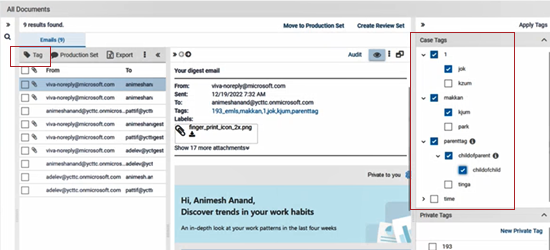 Note: Before applying tags to the review items, it is essential to understand the following facts: While creating a parent tag, if you have not selected the Child Tag Selection Required option, you can apply the parent tag to selected items from cases with or without selecting its child tag. While creating a parent tag, if you have selected the Child Tag Selection Required option, you cannot apply that tag to selected items from cases without selecting at least one child tag. The Info icon appears alongside for easy identification of such parent tags. If you attempt to apply such parent tags without selecting a child tag, an Error icon appears next to the parent tag, instructing you to select at least one child tag. If you attempt to remove preselected child tags, a Caution icon appears, indicating you cannot remove them. Therefore, before applying such parent tags, ensure that you have selected at least one child tag of that parent.
Related information